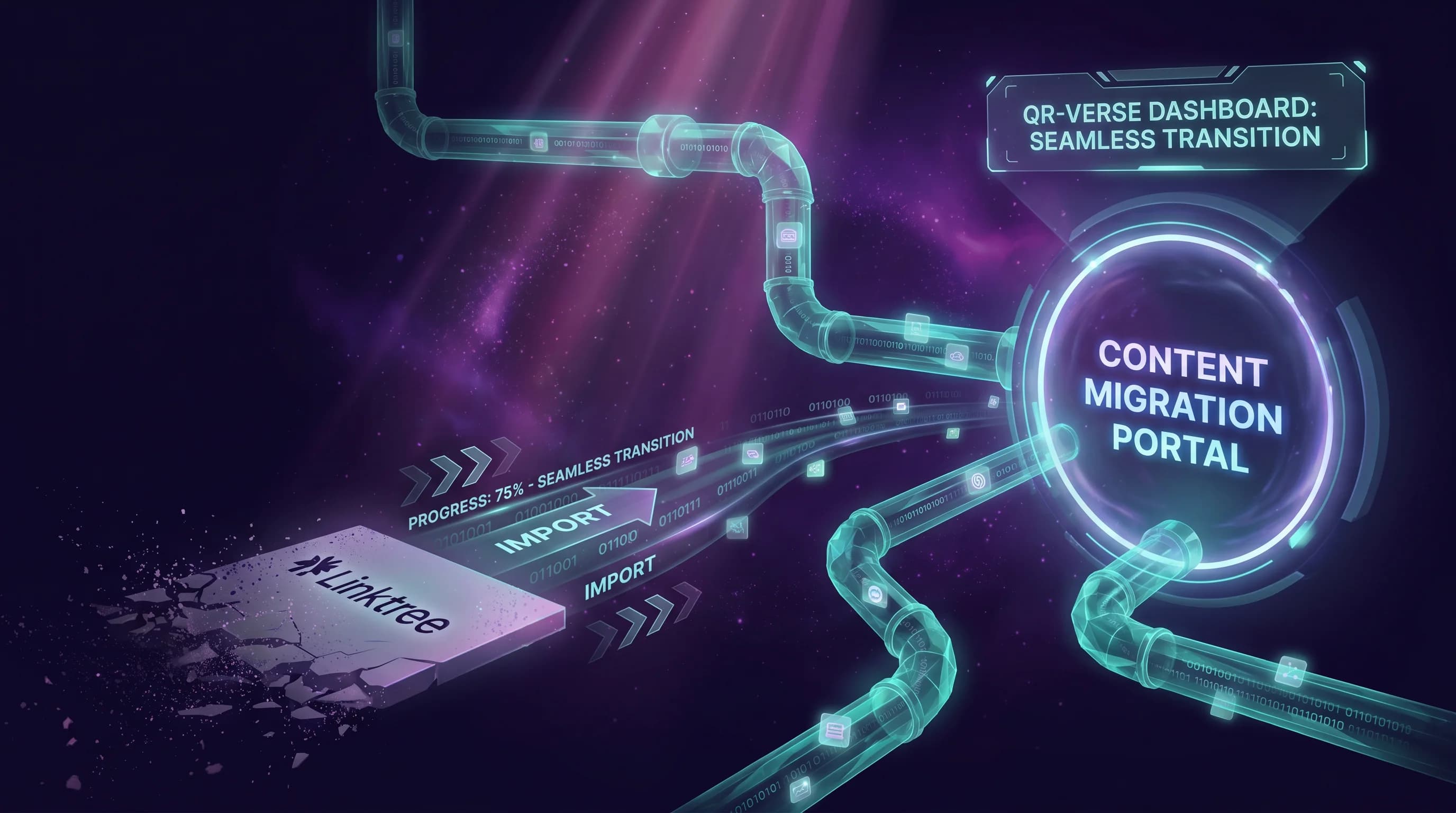
Migrating from Linktree to QR-Verse is a ten-minute task, not a project. You copy your links, build your page, update your bio - and then download a QR code Linktree never gave you. This guide covers every step, including how to run both platforms in parallel during the transition so you lose no audience.
If you want to understand why people leave Linktree before you follow them, see our Linktree pricing teardown - the 12% sales commission is the most common reason, but it is not the only one.
Before you start
- Grab your Linktree username so you can open your existing page as a reference
- Set aside 10 minutes for the digital setup, plus 2-4 weeks of parallel operation if you want a zero-risk transition
- You do not need a QR-Verse account before you start - you create one in Step 1
Moving your links across? Start in the generator with a multi-link code: every link behind one QR.
Start with multi-linkWhy People Migrate from Linktree
Understanding the core reasons makes the migration decision clearer.
The 12% commission. If you sell products, accept tips, or run any commerce through your Linktree page on the free plan, Linktree keeps 12% of every transaction. On the Starter plan ($8/month) and Pro plan ($15/month), that drops to 9% - but zero commission only arrives at the Premium plan ($35/month). QR-Verse charges 0% commission on every plan, including free, because it does not sit in the payment flow at all.
No QR code. Linktree gives you a URL - linktr.ee/yourname. That URL is invisible on a printed poster, table card, or business card. QR-Verse generates a scannable dynamic QR code alongside your multi-link page automatically. The same content that goes in your social bio becomes a physical asset you can print.
EU data residency. Linktree is a US company processing analytics data under US jurisdiction. For EU businesses operating under GDPR, this creates questions legal teams are increasingly flagging. QR-Verse is a Dutch company with EU-hosted infrastructure.
Analytics paywalled. Linktree free has no per-link click data. You see a total page view count and nothing else actionable. QR-Verse free includes scan count, device type, and browser breakdown - more than Linktree's free tier regardless of subscription level.
The 5-Step Migration
Step 1: Create your QR-Verse multi-link page
Go to /create and select the multi-link QR code type. You do not need an account to start - you can create and preview your page before signing up.
Enter a title for your page. This becomes the heading visitors see when they scan your QR code or visit your link. Use your name, brand name, or handle - exactly what you have on your Linktree page.
Step 2: Copy your links from Linktree
Open your Linktree dashboard in another tab. For each link on your existing page:
- Copy the title (what visitors see on the button)
- Copy the destination URL
- Paste both into QR-Verse
The order is up to you. Most users replicate the same link order from Linktree during the initial migration, then optimize based on QR-Verse's per-link analytics data after the first few weeks.
Links to bring over:
- Social media profiles
- Website or portfolio
- Product or shop links
- Booking or reservation links
- Subscription or newsletter links
Links to leave behind:
- Any Linktree-specific integrations (Tip Jar, Linktree Commerce) - replace these with external payment links (Stripe, Gumroad, Ko-fi) that you already own. This removes the platform from the payment flow entirely.
Step 3: Customize your page
Add your profile photo or brand logo to the page header. Set a background color that matches your brand. QR-Verse Pro at EUR 4.99/month removes the QR-Verse watermark and adds custom domain support - but even the free plan gives you a clean, functional link page with your image and name.
If you already have brand colors, use them. The page your visitors see should feel like you, not like a generic template.
Step 4: Save and download your QR code
Create a QR-Verse account to save your page. This is when the QR code becomes available to download. The free plan generates one dynamic QR code in PNG format. QR-Verse Pro adds SVG export (print-quality for any size) and unlimited codes.
Download the QR code in the format you need. For digital use, PNG is fine. For anything printed - business cards, posters, packaging - use SVG from Pro or download the highest resolution PNG available on the free plan.
Your QR code is a dynamic code. This means you can update the links behind it from your dashboard at any time without reprinting. The QR code pattern on your printed materials never changes even when your links do.
Step 5: Update your social profiles
Replace your Linktree URL in each of your social bios with your new QR-Verse URL. This is where the migration goes live.
Platforms to update:
- Instagram (Settings > Edit Profile > Website)
- TikTok (Edit Profile > Website)
- Twitter/X (Edit Profile > Website)
- YouTube (About > Links)
- Pinterest (Profile settings > Website)
- LinkedIn (Contact info > Website)
- Any other platform where you have a bio link
This step requires visiting each platform. Budget 15-20 minutes if you are active on more than three platforms.
Running Both Platforms in Parallel (Recommended)
Do not cancel Linktree the moment you finish Step 5. Run both platforms simultaneously for 2-4 weeks. Here is why.
Anyone who bookmarked your Linktree URL directly - not through a social profile - will keep reaching your old page. During the parallel window, any traffic you lose to the old URL is still being served, and you can monitor your new QR-Verse analytics to confirm that traffic is shifting to the new URL.
During the parallel period:
- Keep your Linktree page live but stop adding new links to it
- Add a notice to your Linktree page: "Find all my links at [your QR-Verse URL]" - or add a single link at the top that redirects to your new page
- Monitor your QR-Verse scan and click analytics weekly to confirm traffic is growing
After 2-4 weeks, cancel Linktree when you are satisfied that no meaningful traffic still depends on the old URL.
What You Gain After Migrating
A QR code that is already printed - once you generate your dynamic QR code and print it, it points to your page forever. Update links in your dashboard without touching the physical material.
Zero commission permanently - all revenue from any links on your QR-Verse page goes to the platforms you chose (your Stripe, your Gumroad, your external shop). No percentage goes to QR-Verse at any plan level.
Scan analytics from day one - your QR-Verse dashboard shows every scan with device type and browser breakdown from the moment your first visitor arrives. Per-link click tracking and geographic data require QR-Verse Pro at EUR 4.99/month.
EU-based data processing - scan analytics for your EU visitors are processed under EU infrastructure, which simplifies GDPR compliance for European businesses.
Handling Printed Materials with Your Old Linktree URL
If you have printed materials with linktr.ee/yourname on them - business cards, menus, flyers, posters - you have two options:
Option A: Let them expire naturally. Keep your Linktree active until this batch of printed materials is naturally replaced. This works if you have a predictable reprint cycle (menus every quarter, business cards annually).
Option B: Redirect at the Linktree level. While your Linktree account is active, you can add your QR-Verse URL as the first and most prominent link on your Linktree page. Anyone who scans old printed materials and reaches your Linktree page will see a clear path to your new QR-Verse page.
In either case, the next time you reprint anything, use your QR-Verse QR code (not a URL) as the scannable element. A dynamic QR code does not expose a platform-specific URL that breaks if you ever switch tools again. The code pattern is yours - the destination is something you control.
Migrating Linktree Commerce
If you used Linktree's native Commerce features - product sales, memberships, tip jars - you need to move those to external platforms before canceling.
Common replacements:
- Tips / support payments - Ko-fi (free, 0% fee), Buy Me a Coffee (free, 0% fee)
- Digital products - Gumroad (5% + $0.30), Payhip (free plan available)
- Memberships / subscriptions - Patreon, Substack, Memberful
- Physical product sales - Shopify, WooCommerce, Etsy
Add the URL for each external platform as a link in your QR-Verse multi-link page. Visitors tap your link, land on your payment platform, and the transaction happens there - outside any bio link tool, with no platform commission on either side.
The practical advantage: your revenue chain no longer runs through a link aggregator's commission structure. Linktree took 12% (free plan) or 9% (paid plans below Premium) from every transaction. Moving to external platforms removes that entirely.
Your New QR Code on Printed Materials
This is the part of QR-Verse that has no Linktree equivalent.
Once you have your QR code, you can place it on:
- Business cards - one QR code instead of a URL that visitors have to type
- Restaurant tables - multi-link QR codes that connect menu, reservations, Google Reviews, and social profiles in one scan
- Event materials - flyers, banners, wristbands, and lanyards that link to your page without exposing a URL
- Packaging - product boxes and inserts with a QR code that connects to tutorials, warranty registration, and social profiles
- Printed collateral - brochures, postcards, and mailers where a QR code drives traffic better than a long URL
The key advantage of using QR-Verse over generating a QR code from a third-party tool: when you update your links in the QR-Verse dashboard, every printed QR code that uses your dynamic code updates automatically. No reprint needed.
If you have been generating QR codes from free tools and pointing them at your Linktree URL, those codes go dead the moment you cancel Linktree. A QR-Verse dynamic code is independent of any destination URL you might change in the future.
Common Mistakes During Migration
Canceling Linktree before updating all social profiles. Your linktr.ee/yourname URL goes offline immediately when you cancel. Anyone who clicks it from an old social profile gets a dead page. Update every social profile to your QR-Verse URL before canceling.
Using a third-party QR code generator to point at your QR-Verse URL. This creates an unnecessary middle layer. QR-Verse generates its own dynamic QR code pointing to your page. Use that - not a QR code from another tool pointing at your QR-Verse URL.
Not downloading your QR code before printing season. If you have an event, a product launch, or a regular reprint cycle coming up, download your QR code in SVG format (Pro) before you need it. Rushing a reprint at the last minute because you forgot to prepare the QR file is avoidable.
Keeping your QR-Verse page appearance identical to Linktree. Migration is a good time to improve your page, not just duplicate it. QR-Verse analytics will show you within weeks which links your audience actually taps. Use the data to improve the page rather than preserving whatever structure Linktree gave you.
Frequently Asked Questions
What happens to people who saved my Linktree URL?
They continue reaching your Linktree page for as long as your account is active. Once you cancel Linktree, the URL goes offline. The recommended transition is to keep Linktree active for 2-4 weeks after you have moved your social profiles to your QR-Verse URL, then cancel once you confirm traffic has shifted.
Can I keep my Linktree and QR-Verse running simultaneously?
Yes, indefinitely if you want. Many users run both during a transition and then cancel Linktree after 30 days once they confirm their QR-Verse page is working. There is no technical conflict between the two tools.
Will my QR code break if I cancel Linktree?
No - your QR-Verse QR code points to your QR-Verse multi-link page, not to Linktree. Linktree cancellation has zero effect on your QR-Verse code. The only thing that breaks when you cancel Linktree is your linktr.ee/yourname URL.
Do I need to reprint materials with Linktree URLs after migrating?
Not immediately. Keep those materials in circulation until you replace them naturally. When you do replace them, use your QR-Verse QR code in SVG format for print. The code is scannable and does not expose a platform-specific URL that breaks if you ever switch tools again.
How long does migration take?
The technical setup - recreating your links on QR-Verse and downloading your QR code - takes under 10 minutes. The full migration, including updating all social profiles and running both platforms in parallel, takes 2-4 weeks to complete safely without losing any audience.
What do I gain by switching from Linktree to QR-Verse?
Two things Linktree does not provide: a scannable QR code for physical materials (posters, merch, business cards), and zero commission on all plans. If you earn through your bio link using Linktree's native features, switching to QR-Verse stops the 12% commission immediately. Scan analytics are available from day one on the free plan. Per-link click tracking - seeing exactly which links your audience taps - is available on QR-Verse Pro at EUR 4.99/month.
Can I use QR-Verse just as a bio link and skip the QR code?
Yes. Your QR-Verse multi-link page has its own URL that you can use as a standard bio link, exactly like Linktree. The QR code is generated automatically but using it is optional. Many QR-Verse users use the URL as their primary bio link and download the QR code for occasional print use.
Next Steps
Start your migration at /create - it takes under ten minutes and no credit card is required.
If you want to understand the full feature gap before switching, see our Linktree vs QR-Verse 2026 comparison or our nine-tool Linktree alternatives guide. If you are a restaurant or EU-based business, our guide to Linktree mistakes EU brands make is also worth reading before you migrate.
The switch itself takes ten minutes. The ongoing benefit - no commission, a QR code you actually own, and EU-based analytics - compounds from there.
Ready to create your QR code?
Free plan available. No signup required. Create professional QR codes in seconds.
Ready to try it yourself?
Create professional QR codes with tracking, custom colors, and AI-generated art.
Try our free tools:
Create your QR code in seconds
No signup, no credit card. 27 QR types with full customization. Upgrade to Pro (EUR 4.99/mo) for unlimited power.
Share this article
Related Articles

Linktree vs QR-Verse 2026: Full Feature Comparison (Pricing, QR, Analytics)
Linktree vs QR-Verse: compare pricing tiers, QR code support, analytics depth, commission structure, and offline reach. Honest breakdown to find the right bio link tool for your situation.
Read More
8 Linktree Alternatives Compared by Price (2026)
8 Linktree alternatives compared on monthly price, sales commission, QR codes and analytics - free and paid options with a verdict per use case.
Read More
Linktree Pricing 2026 Explained + Cheaper Alternative
Every Linktree plan compared: free, $8, $15 and $35/mo, plus the 12% fee on digital product sales. See where a QR code does the same job for less.
Read More