How Can We Help?
Welcome to the QR-Verse Help Center. Find step-by-step guides for creating QR codes, managing your dashboard, understanding analytics, and troubleshooting common issues. Browse our knowledge base below or use the search to find exactly what you need.
Browse by Topic
Select a topic to jump to its articles, or use the search bar above.
Getting Started
5Getting Started with QR-Verse
Everything you need to know to create your first high-quality QR code in seconds. No sign-up required.
What is a QR Code? (Beginner Guide)
The history, technology, and anatomy of the Quick Response code.
How to Create a QR Code: Easy Guide (2026)
Learn how to create a QR code in 5 easy steps. Free, no sign-up required. Customize colors, add your logo, and download in PNG or SVG.
How to Scan QR Codes: iPhone & Android Guide
Learn how to scan a QR code on iPhone, Android, and any smartphone. Step-by-step instructions for camera apps, Google Lens, and third-party scanners.
Dynamic QR Codes
2Account & Settings
3Managing Your Profile & Data
How to handle your account, claim QRs, and manage privacy settings.
How to Use Teams & Collaboration
Invite team members, assign roles like admin, editor, or viewer, and enforce brand kit consistency across your organization.
Webhook & Slack Notifications
Set up webhook integrations and Slack notifications for your QR code events.
Troubleshooting
1Billing & Plans
1AI Art QR Codes
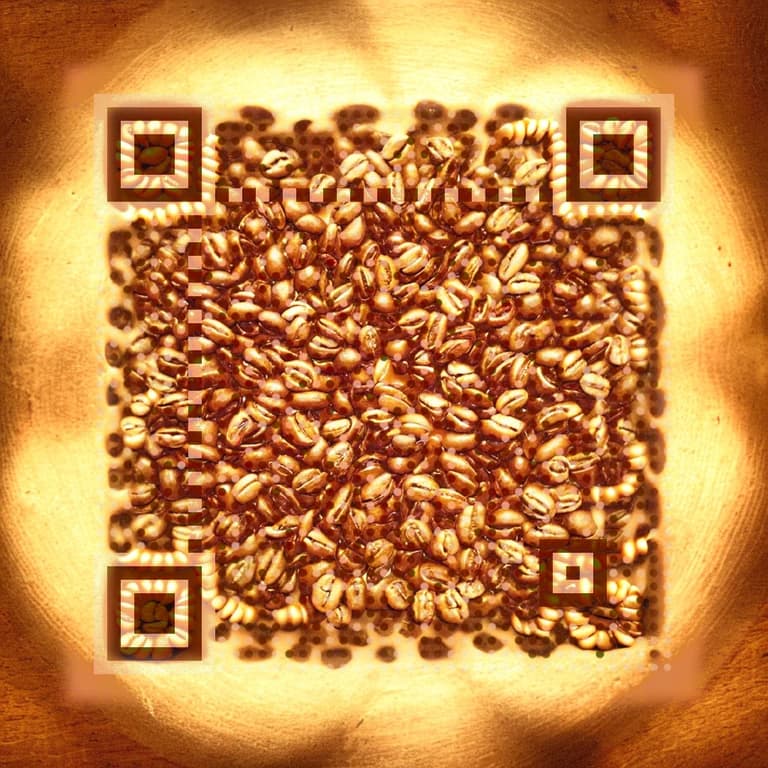
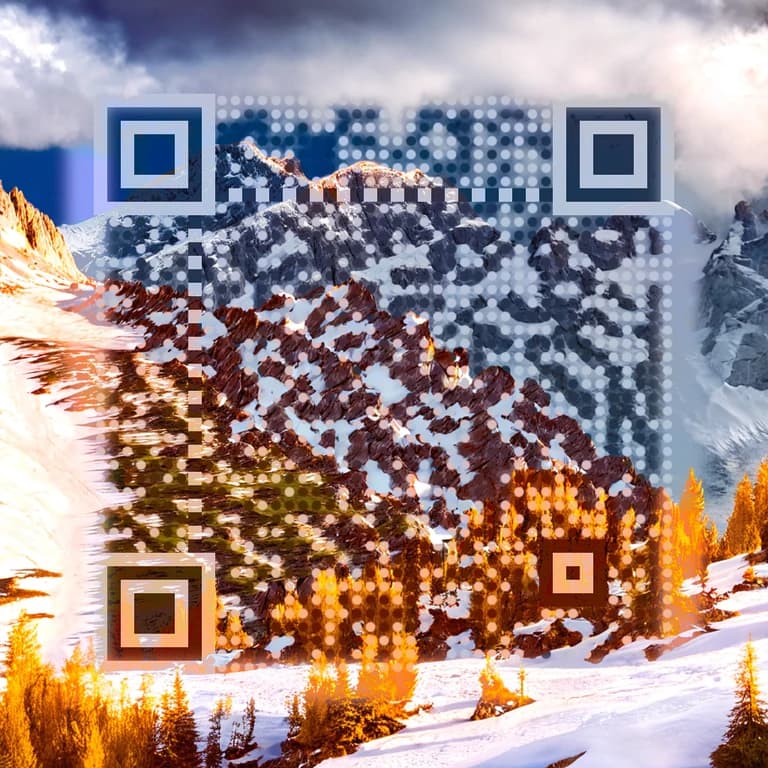
2Getting Started with AI Art QR Codes
Step-by-step guide to creating your first AI-generated QR code artwork using QR-Verse.
AI Art Prompting Guide: Write Better Prompts
Learn how to write effective prompts for AI QR code art. Tips for different styles, industries, and advanced settings.
Can't find what you're looking for?
Our support team is here to help with any questions you might have.
We typically respond within 24 hours on business days.
QR-Verse Help Center
Find step-by-step guides, troubleshooting tips, and best practices for creating, managing, and tracking QR codes. Whether you are just getting started or need help with advanced features like AI art, analytics, or team management, our help center has you covered.
Popular Help Topics
Getting Started
Learn how to create your first QR code in under 60 seconds. Our quick start guide walks you through choosing a QR type, customizing the design, and downloading in the right format.
Dynamic vs Static QR Codes
Understand the key differences between static and dynamic QR codes, when to use each type, and how dynamic codes give you the flexibility to update destinations and track scans.
QR Code Analytics
Learn how to read your scan data, understand location and device metrics, and use analytics to optimize your QR code campaigns for better results.
Design & Customization
Make your QR codes stand out with custom colors, logos, and shapes. Learn the rules for maintaining scannability while creating visually appealing codes.
Account & Billing
Manage your subscription, upgrade or downgrade plans, and understand what is included in each tier. All your billing questions answered.
Need More Help?
Could not find what you are looking for? Our support team is here to help.
Help Center
Learn how to create, customize, and manage QR codes with QR-Verse. Step-by-step guides, troubleshooting tips, and best practices for professional QR code generation.
Quick Start Guide
Create your first QR code in under 60 seconds
Getting started with QR-Verse is simple. First, navigate to the main QR-Verse generator page and select your QR code type from 25 options (URL, WiFi, vCard, social media, etc.). The entire interface is available in 7 languages (English, Dutch, Spanish, French, German, Italian, Portuguese) - switch languages anytime from the top navigation. Next, enter your content - this could be a website URL, WiFi credentials, contact information, or any other data depending on your chosen type. Then, customize the design using QR-Verse's visual editor: change colors (ensure high contrast for scannability), upload your logo (automatically centered with error correction), select dot patterns (squares, circles, or fluid), and choose eye styles for the three corner frames. Finally, click download to get your QR code as PNG (digital/web use), SVG (professional printing), or PDF (easy sharing). For static codes, you're done - it's permanent and ready to print. For dynamic codes (editable with scan tracking), click 'Make Dynamic' to create a QR-Verse dashboard entry where you can edit the destination URL anytime and view detailed analytics including scan counts, locations, devices, and timestamps. Test your code with multiple phones before mass printing.
Understanding dynamic vs static QR codes
Choosing between static and dynamic QR codes is crucial. Static codes embed data directly in the pixels - think of it like a barcode. The data is permanent, scans are fastest (no server lookup), and there's no tracking (complete privacy). However, you cannot edit the destination after creation. If the URL breaks, you must reprint. Use static for WiFi codes, vCards (if stable), permanent product labels, or situations where you prioritize speed and privacy. Dynamic codes use a short redirect URL stored on our servers. Scanning routes through QR-Verse infrastructure to your destination. This enables editing the destination anytime without reprinting (perfect for marketing campaigns, seasonal menus, or business cards), real-time scan analytics (total scans, unique visitors, location, device, browser, referrer, time charts), and advanced features like A/B testing or device-specific routing (iOS users see App Store, Android users see Google Play). Dynamic codes require an internet connection to redirect and depend on QR-Verse uptime (high availability infrastructure). The free plan includes unlimited static codes and 1 dynamic code, all with unlimited scans. Pro (€4.99/mo) adds unlimited dynamic codes. Pro tip: when in doubt, choose dynamic - the flexibility is worth the millisecond redirect delay.
Download formats and when to use them
QR-Verse offers three download formats optimized for different use cases. PNG (Portable Network Graphics) is a raster format perfect for digital use - email signatures, websites, social media posts, PowerPoint presentations, and small print items like business cards or flyers. Download at high resolution (1024×1024 or higher) and ensure 300+ DPI when printing to maintain clarity. PNG files have transparent backgrounds, making them easy to overlay on designs. SVG (Scalable Vector Graphics) is the professional choice for large-format printing. Because it's vector-based (mathematical paths, not pixels), SVG scales infinitely without quality loss. Use SVG for billboards, posters, vehicle wraps, T-shirt printing, merchandise, banners, or any situation where size is unpredictable. Design software like Adobe Illustrator, Figma, or Canva handles SVG perfectly. Print shops prefer SVG because it guarantees crisp edges at any scale. PDF (Portable Document Format) combines convenience with compatibility - perfect for sharing with clients, print shops, or team members who may not have design software. PDF files can be opened on any device and maintain exact layout. Use PDF when you need a 'ready to print' format that anyone can view. Pro tip: for professional projects, always download both PNG (for quick digital sharing) and SVG (for print production) to cover all bases.
Testing your QR code before printing
Never print 1,000 copies without testing. Here's the complete pre-print checklist: First, test on multiple devices - scan with both iPhone (iOS Camera app) and Android (Camera or Google Lens) to ensure cross-platform compatibility. Older devices (pre-2017) may need a QR scanner app, so test with those too. Second, test at actual print size - resize your digital proof to the exact dimensions you'll print (2cm × 2cm minimum) and scan from the expected distance. If users scan from 10 inches, test from 10 inches. Third, test lighting conditions - try scanning in bright light, dim light, and with glare on the surface. Matte finishes scan more reliably than glossy. Fourth, test color combinations - high contrast is critical. If using brand colors, verify they provide enough differentiation. Black on white is always safest. Fifth, verify the destination - make sure the URL works, WiFi credentials connect properly, vCard imports all fields, etc. For dynamic codes, check that the redirect URL is correct in your dashboard. Sixth, print a small test batch (10-50 copies) on the actual material (paper, sticker, plastic, fabric) you'll use for production. Some materials (metallic, transparent, dark backgrounds) affect scannability. Only after passing all tests should you proceed to mass printing. This 10-minute process can save thousands in reprinting costs.
Managing your QR-Verse dashboard
Your QR-Verse dashboard is mission control for all dynamic codes. Access it by clicking 'Dashboard' in the top navigation after logging in to your QR-Verse account. The main view shows all your QR codes as cards with thumbnail previews, names, types, creation dates, and quick stats (total scans, unique visitors). Click any card to open detailed analytics in your QR-Verse dashboard: time-series scan charts (hourly, daily, weekly), geographic heatmaps (country and city level), device breakdown (iOS vs Android, phone vs tablet, browser types), referrer sources (where scans came from), and scan timestamps for individual events. Edit your QR code destination by clicking 'Edit Destination' in the QR-Verse dashboard - the change is instant without reprinting. You can also rename codes, archive inactive ones (removes from main view but preserves data), or delete permanently (stops redirect immediately and erases all data). Use the QR-Verse dashboard's search and filter tools to find codes by name, type, or date range. Export analytics as CSV for deeper analysis in Excel or Google Sheets. Pro tip: organize codes with descriptive names like 'Summer Menu 2026' or 'Conference Booth Flyer - Chicago' instead of generic names. This makes management easier as your QR code library grows. You can also claim anonymous codes created before logging in - the QR-Verse dashboard checks your browser history and offers to add them to your account.
Design & Customization
Adding your logo to QR codes
Logos make QR codes instantly recognizable and build trust - users are more likely to scan a branded code than an anonymous one. Here's how to do it right: First, prepare your logo file - PNG with transparent background works best. Square logos (1:1 ratio) center perfectly. Keep file size under 2MB for fast processing. Upload using the 'Logo Uploader' in the design panel. Second, adjust logo size carefully - we recommend 15-20% of total QR code area. The interface shows a percentage slider. Under 25% is the safe zone. Larger logos may cause scan failures, especially with low-contrast QR colors. Third, set error correction to High or Quartile (automatic when you upload a logo). This builds 30% redundancy into the code, meaning it can still scan even with the logo covering part of it. Fourth, preview and test - download a sample, resize to actual print size, and scan with multiple phones. If scanning fails, reduce logo size by 5% increments until reliable. Fifth, avoid covering the three corner 'eyes' (finder patterns) with your logo - our automatic centering prevents this, but be cautious if manually positioning. Pro tips: Use high-contrast logos (dark logo on light QR background or vice versa). Avoid thin lines or intricate details in logos - they don't scale well at small sizes. Monochrome logos (single color) often work better than full-color on QR codes.
Choosing colors and patterns for scannability
Color customization lets you match brand identity, but scannability must come first. Rule one: high contrast is non-negotiable. QR scanners look for distinct differences between foreground (data dots) and background. Best combination: black on white. Safe alternatives: dark navy on white, black on light yellow, dark red on white. Dangerous combinations: yellow on white (too similar), dark blue on black (no contrast), red on green (color blindness issues). Test any non-standard colors thoroughly. Rule two: always use darker foreground, lighter background. Inverted codes (white on black) can work but are less reliable on older cameras - test extensively before production. Rule three: customize the three elements separately - foreground color (main data dots), background color (base layer), and eye color (three corner frames). Using a different eye color (e.g., brand accent color) while keeping data dots black maximizes both scannability and branding. Pattern selection: Squares (classic, highest compatibility with all scanners), Dots/Circles (modern, friendly aesthetic, 95% compatibility), Fluid (organic rounded style, 90% compatibility - test before using for critical applications). Shape selection affects information density - rounder shapes need slightly more space. Eye styles: we offer 8 unique corner frame designs from angular to circular. These are purely aesthetic and don't affect scannability. Design templates: use our one-click templates to apply professional color palettes and patterns that we've pre-tested for reliability. Pro tip: print a small batch, scan in various lighting conditions, and only proceed to mass production after confirming reliable scans.
Print size recommendations by use case
Size matters for QR code scannability - too small and cameras can't resolve the pixels. Use the 10:1 ratio rule: scanning distance (in inches) divided by 10 equals minimum QR code size (in inches). Here's your sizing cheat sheet by use case: Business cards (scanned from 6-10 inches): minimum 0.8 inches (2cm), recommended 1 inch (2.5cm). Place in corner or back for easy scanning without obscuring text. Flyers and posters (scanned from 12-24 inches): minimum 1.5 inches (4cm), recommended 2-3 inches (5-7.5cm). Place at eye level for easy access. Restaurant table tents (scanned from 10-20 inches): minimum 1.5 inches, recommended 2.5 inches (6cm). Laminate for durability and reduce glare. Product packaging (varies by product size): for handheld products, 0.8-1.5 inches; for shelf products scanned from 12+ inches, 2-3 inches. Ensure packaging curvature doesn't exceed 30 degrees where QR code is placed. Billboards (scanned from 10-20 feet): minimum 10-12 inches (25-30cm), recommended 18-24 inches (45-60cm). Use SVG format to maintain quality at scale. Consider that users may scan from moving vehicles - larger is safer. T-shirts and merchandise (scanned from 12-18 inches): minimum 2 inches (5cm), recommended 3-4 inches (7.5-10cm). Account for fabric texture which can reduce clarity. Vehicle wraps (scanned from 3-10 feet): minimum 6 inches (15cm), recommended 10-12 inches (25-30cm). Place on flat surfaces (not over door handles or curves). Absolute minimum regardless of use case: never go below 0.8 inches (2cm × 2cm). Below this threshold, most phone cameras cannot resolve individual pixels reliably. Always test at actual size before production.
Using frames and custom text labels
Frames add context to QR codes, dramatically improving scan rates by telling users what to expect. Our Frame Designer lets you add text labels like 'SCAN ME', 'VIEW MENU', 'CONNECT TO WIFI', or custom calls-to-action. Here's how to use frames effectively: First, choose frame position - Top (classic, most visible), Bottom (subtle, professional), or Left/Right (modern, creative). Top frames get highest scan rates in user testing. Second, write clear, action-oriented text - use verbs like 'Scan', 'Tap', 'View', 'Get', or 'Download'. Be specific: 'Scan for Menu' outperforms generic 'Scan Here'. Keep it under 20 characters for readability at small sizes. Third, customize frame colors to match your brand. The frame background color and text color can be set independently. Maintain high contrast: dark text on light frame or vice versa. Match frame colors to your logo or QR code eye colors for cohesive branding. Fourth, preview at actual size - text that's readable on screen may be too small when printed at 2cm. Test legibility before printing. Use cases: 'SCAN FOR MENU' on restaurant table tents, 'GET 10% OFF' on promotional flyers, 'CONNECT TO WIFI' on cafe signs, 'DOWNLOAD APP' on product packaging, 'VIEW PORTFOLIO' on business cards, 'JOIN WAITLIST' on event posters. Pro tips: frames increase QR code height by ~20% - account for this in your layout. Use sentence case ('Scan me') rather than all caps for friendlier tone. Match frame language to your QR code destination - don't say 'Watch Video' if it links to a PDF. For multilingual use, create separate QR codes with localized frame text for each language rather than using generic icons.
Advanced options: error correction and quiet zones
These technical settings fine-tune QR code reliability and professional appearance. Error Correction Level: QR codes use Reed-Solomon error correction to remain scannable even when partially damaged. Four levels exist: Low (7% redundancy, smallest code, use only for pristine conditions), Medium (15% redundancy, default for logo-free codes), Quartile (25% redundancy, good balance for most uses), High (30% redundancy, automatic when logo is added, maximum damage tolerance). Higher error correction creates more data modules (denser pattern) but allows the code to survive damage, dirt, wear, or logo overlays. Our system automatically selects optimal levels based on your design, but you can override. Use High if printing on rough surfaces (fabric, corrugated cardboard, outdoor materials), adding large logos (>20%), expecting wear and tear (product labels, reusable signage), or printing very small (under 1 inch). Use Low only for digital-only codes that will never be printed. Quiet Zone: The quiet zone is the white margin around your QR code - technically required by ISO standards. Minimum is 4 modules (4 times the width of one QR dot). Our default is 10 modules for extra safety. Adjust this if you're tight on space, but never go below 4. The quiet zone helps scanners identify where the code begins and ends, especially on busy backgrounds. If your QR code is on a white page with no nearby elements, you can reduce quiet zone to 4-6 modules. If it's on a colorful poster with text and images nearby, increase to 15-20 modules for clear separation. Pro tip: export your QR as SVG, measure one module (single dot width), and verify your quiet zone is at least 4 modules wide on all four sides. This ensures compliance with ISO/IEC 18004 specifications.
Analytics & Tracking
Understanding your analytics dashboard
The analytics dashboard is your window into QR code performance. Accessible by clicking any dynamic QR code in your main dashboard, it shows comprehensive scan data updated in real-time. Key metrics explained: Total Scans counts every scan event - if one person scans 5 times, this increments by 5. Use this to measure engagement intensity. Unique Scans counts distinct devices using browser fingerprinting - same person 5 times adds only 1. This represents your true reach (how many different people engaged). Scan Rate calculates scans per day or per hour during active periods. Location Data breaks down scans by country, region, and city using IP geolocation. Accuracy is city-level (not precise GPS). Use this to identify where your QR codes are performing best geographically. Device Breakdown shows iOS vs Android, phone vs tablet, and specific browser types. This helps optimize your destination page for the devices your audience uses. Time Charts display scans over hourly, daily, or weekly intervals. Identify peak scanning times to inform future campaign timing. Referrer Sources track where scans originated (if accessible) - some devices block this for privacy. Export Options: Download any report as CSV for deeper analysis in Excel, Google Sheets, or analytics platforms. CSVs include timestamp, location, device, browser, and referrer for each scan. Pro tips: Compare total vs unique scans to calculate engagement depth (total ÷ unique = average scans per person). Track week-over-week growth to measure campaign momentum. Use geographic data to allocate marketing budgets to high-performing regions.
Running A/B tests with multiple QR codes
QR codes are perfect for A/B testing because each code gets its own analytics stream. Here's how to run effective tests: The Setup: Create two (or more) dynamic QR codes pointing to the same destination URL. Assign each code to a different test variable - e.g., Code A on red flyers, Code B on blue flyers. Deploy them in similar contexts (same time, same locations, same distribution method) to isolate the variable being tested. Track each code separately in your dashboard. Test Ideas: Design variations (different QR colors, logos, patterns, eye styles), placement variations (top-left vs center vs bottom-right of flyer), size variations (1 inch vs 2 inch codes to find minimum effective size), call-to-action variations (frame text: 'Scan Me' vs 'Get 10% Off' vs 'View Menu'), distribution channel variations (print vs digital, urban vs suburban, indoor vs outdoor), timing variations (morning vs evening distributions, weekday vs weekend). Running the Test: Deploy codes simultaneously to remove timing bias. Run for a statistically significant period (at least 7 days, ideally 14-30 days for larger sample sizes). Track daily to identify trends. Analyzing Results: Compare total scans and unique scans between variants. Calculate conversion rates if your destination page has measurable actions (purchases, signups, downloads). Look beyond raw numbers - consider cost per scan if distribution methods differ in cost. Use confidence intervals to determine if differences are statistically significant (online calculators available). Making Decisions: The winner is clear if one variant has 20%+ more scans with similar sample sizes. If results are within 10%, consider them tied - external factors likely explain the variance. Implement the winning design in future campaigns. Pro tip: test one variable at a time. Testing color AND placement AND size simultaneously makes it impossible to know which variable drove results.
Exporting and analyzing scan data
Raw analytics data unlocks deeper insights when analyzed in spreadsheet or analytics tools. Here's how to maximize exported data: Exporting from Dashboard: Click 'Export CSV' on any QR code's analytics page. The file includes columns: timestamp (exact scan time), country, region, city, device (iOS/Android/Other), device_type (mobile/tablet/desktop), browser, browser_version, referrer (if available), is_unique (boolean marking first-time device). Files download immediately and include all historical data since code creation. Analysis Techniques: Time analysis - create pivot tables grouping by hour-of-day or day-of-week to identify peak scanning periods. This informs optimal posting times for future campaigns. Geographic analysis - filter by country or city to calculate regional performance. Identify underperforming regions for targeted marketing or over-performing regions to double down on. Device analysis - calculate iOS vs Android ratios. If 80% of scans are iOS, ensure your destination page is optimized for Safari and iPhone screen sizes. Unique vs repeat ratio - divide unique scans by total scans. If the ratio is low (e.g., 0.2 = 20% unique), you have high repeat engagement. If high (e.g., 0.9 = 90% unique), scans are mostly one-time. Repeat scans may indicate saved/bookmarked destinations. Cohort analysis - segment scans by creation week and track retention over time. Do codes from Campaign A retain engagement better than Campaign B? Advanced Tools: Import CSVs into Google Analytics, Tableau, Power BI, or Python/R for advanced visualizations. Use SQL databases to combine QR scan data with website conversion data for end-to-end funnel analysis. Privacy Note: Our data is anonymized - no PII is collected. Users are represented as device fingerprints, not names or emails. This is GDPR and privacy-regulation compliant.
Troubleshooting
QR code won't scan: Complete diagnosis checklist
If your QR code won't scan, work through this systematic checklist: Problem 1: Low contrast - QR scanners need clear differentiation between foreground and background. Fix: Use black on white or very dark on very light. Avoid yellow on white, dark blue on black, or any low-contrast combinations. Test by converting to grayscale - if you can't see clear distinction, neither can a scanner. Problem 2: Size too small - codes under 2cm × 2cm rarely scan reliably. Fix: measure your printed code with a ruler. If under 0.8 inches (2cm), increase size and reprint. Remember the 10:1 rule (scanning distance ÷ 10 = minimum size). Problem 3: Logo too large - logos over 25% of code area block critical data. Fix: reduce logo size to 15-20% or remove entirely to test if scanning improves. Ensure error correction is set to High. Problem 4: Quiet zone cut off - the white margin around the code is required for detection. Fix: ensure at least 4 modules (4x the width of one dot) of clear white space on all sides. Don't place text, borders, or images right up against the code. Problem 5: Print quality issues - blurry, pixelated, or smudged codes fail to scan. Fix: use vector SVG files for printing, not low-resolution PNG. Ensure printer DPI is 300+ for print materials. Check that ink hasn't smudged or faded. Problem 6: Lighting and glare - glossy surfaces reflect camera flash, obscuring the code. Fix: scan in even, indirect lighting. Angle the phone to avoid glare hotspots. Use matte finishes instead of glossy lamination for print materials. Problem 7: Curved or damaged surfaces - bent, wrinkled, or warped surfaces distort the code geometry. Fix: flatten the material before scanning. For permanent curved surfaces (bottles, cylinders), test that curvature doesn't exceed 30 degrees. Problem 8: Camera issues - outdated phones (pre-2017) may lack native QR scanning. Fix: download a free QR scanner app from the App Store or Google Play. Ensure camera lens is clean and focus is working.
Dynamic codes not redirecting properly
If your dynamic QR code scans but doesn't redirect correctly, diagnose these common issues: Issue 1: Incorrect destination URL - typos or incomplete URLs cause redirect failures. Fix: open your QR code's dashboard page and click 'Edit Destination'. Verify the URL is complete with https:// prefix. Test the URL by copying and pasting into a browser. Common mistakes: missing 'https://', extra spaces, or incorrect domain extensions (.com vs .net). Save changes and test scan again. Issue 2: Destination page is down - your target website may be offline. Fix: paste the destination URL directly into a browser to verify it loads. If the page is down, contact your web host or wait for service restoration. QR-Verse redirect infrastructure is built for high availability - outages are almost always on the destination end, not our redirect servers. Issue 3: Deleted or archived QR code - if you deleted a QR code, its short URL returns a 404 error. Fix: check your dashboard's 'Archived' or 'Deleted' sections to restore the code if deletion was accidental. Once permanently deleted, the short URL cannot be recovered - you must create a new code and reprint. Issue 4: Firewall or region blocking - some corporate firewalls or countries block redirect services. Fix: test scanning on a different network (e.g., cellular data vs WiFi). If certain networks block our redirect domain, consider using a static QR code instead (destination URL embedded directly, no redirect). Issue 5: HTTPS/SSL errors - mixed content warnings occur if your destination page is HTTP (not HTTPS) and includes insecure resources. Fix: ensure your destination URL uses HTTPS. Modern browsers block insecure content. If you control the destination site, install an SSL certificate (free via Let's Encrypt). Issue 6: Cached old destination - browsers sometimes cache redirects. Fix: have users clear browser cache or open the QR code in an incognito/private browsing window. Alternatively, add a query parameter to your destination URL (e.g., change example.com to example.com?v=2) to break the cache. Pro tip: always test dynamic codes immediately after creation before distributing. Catch configuration errors early.
Logo covering too much of the QR code
A logo enhances branding but reduces scannability if too large or poorly positioned. Here's how to fix logo-related scan failures: Symptom: QR code scans inconsistently - works sometimes but fails other times, especially in poor lighting or from certain angles. Diagnosis: Your logo is likely covering more than 25% of the QR code area or blocking critical modules near the three corner eyes (finder patterns). Fix 1: Reduce logo size - open the code in our editor, go to the Logo Uploader section, and reduce the size percentage. We recommend 15-20% as the sweet spot. Each 5% reduction significantly improves reliability. Save, download, and test again. Fix 2: Increase error correction - ensure error correction is set to High (30% redundancy). This allows the QR code to survive up to 30% occlusion or damage. Our system defaults to High when logos are uploaded, but double-check this setting. Fix 3: Reposition logo (manual) - if manually positioning, ensure the logo doesn't cover the three large squares in the corners (finder patterns). These are critical for scanner detection. Center positioning (default) is safest. Fix 4: Simplify logo - intricate logos with thin lines or small details don't scale well at QR code sizes. Use a simplified, bold version of your logo - think monochrome or high-contrast icon rather than detailed full-color art. Fix 5: Remove logo temporarily to test - delete the logo, download a clean version, and test scanning. If it works perfectly without the logo but fails with it, the logo is definitely the issue. You may need to redesign with a smaller or simpler logo. Alternative Approach: place your logo outside the QR code - next to it or above/below rather than overlaid. This guarantees scannability while maintaining branding. You can add a frame with your brand name surrounding the code. Pro tip: different logo shapes work differently. Circular logos work better than rectangular because they waste less QR code area. Square logos are second-best. Horizontal or vertical logos can block entire rows of data modules.
Colors not scanning reliably
Color customization is powerful but risky if contrast isn't maintained. Here's how to fix color-related scan issues: Problem: QR code looks beautiful but scans inconsistently or not at all. Diagnosis: Insufficient contrast between foreground (data dots) and background. Scanners detect patterns by identifying light/dark differences - low contrast confuses the algorithm. Fix 1: Use the contrast test - take a screenshot of your QR code and convert it to grayscale (use any photo editor or online tool). If the foreground and background look too similar in grayscale, they lack sufficient contrast. Fix 2: Darken foreground or lighten background - if using brand colors like navy blue on light gray, try pure black on white instead. Test scanning. If it works, you know contrast was the issue. Gradually reintroduce brand colors, darkening/lightening as needed until you find the threshold where scanning becomes reliable. Fix 3: Avoid color combinations that fail for colorblind users - red on green, orange on brown, pink on purple. About 8% of males have color vision deficiencies. These combinations also often lack luminance contrast. Fix 4: Test in real conditions - colors appear differently on screen vs print, and under different lighting. Print a sample on your actual material (glossy paper, matte cardboard, fabric, plastic) and scan under the lighting conditions where it will be used (bright office, dim restaurant, outdoor sunlight). Fix 5: Use our pre-tested color presets - we offer professionally designed color palettes that we've validated for scannability across devices. Click 'Color Presets' in the design panel to apply one-click themes. These guarantee high contrast. When Color Works: Dark red (#8B0000) on white, forest green (#228B22) on white, navy (#000080) on light yellow (#FFFACD), black on any light color (white, cream, light blue, light pink). When Color Fails: Yellow on white, pink on light pink, dark blue on black, orange on yellow, light gray on white. Pro tip: always prioritize scannability over aesthetics. A working black-and-white QR code is infinitely better than a beautiful non-scanning colored one.
Print quality issues and resolution problems
Low print quality is a silent killer of QR code scannability. Even perfect digital codes fail when poorly printed. Here's how to ensure professional print results: Issue 1: Low resolution (pixelated/blurry) - Symptom: QR code looks jagged or blurry when printed. Individual dots are fuzzy rather than crisp. Fix: Always use SVG files for printing, especially large formats. SVG is vector-based and scales infinitely without quality loss. If you must use PNG, download at least 1024×1024 resolution (higher for large prints) and ensure your print settings are 300 DPI minimum. Most consumer printers default to 150 DPI (draft mode) - change this in print settings. Issue 2: Ink smudging or bleeding - Symptom: Dots blur together, creating dark blobs. Scanners can't distinguish individual modules. Fix: Use high-quality ink/toner. Avoid printing on absorbent materials (newsprint, uncoated paper) that cause ink spread. Use coated paper, cardstock, or sticker material designed for inkjet/laser printing. Let ink dry completely before handling. For large print runs, use professional offset printing rather than desktop inkjet. Issue 3: Fading over time - Symptom: Outdoor QR codes fade from sun exposure; indoor codes fade from handling. Fix: Use UV-resistant inks for outdoor applications. Laminate printed codes to protect from weather and wear. For long-term applications (permanent signage, product labels), use laser printing (doesn't fade like inkjet) or professional screen printing. Issue 4: Printer calibration problems - Symptom: Colors print differently than on-screen. What looks like black on screen prints as dark gray. Fix: Calibrate your printer using manufacturer tools. For critical projects, send a test page to your print shop and verify colors before mass production. Ensure color profiles match (RGB for screen, CMYK for print). Issue 5: Scaling distortion - Symptom: QR code is stretched, squished, or distorted. Not perfectly square. Fix: Always maintain aspect ratio when resizing. Lock proportions in design software. QR codes must be perfectly square - any distortion breaks the geometric pattern scanners expect. Measure printed code height and width to verify they're equal. Professional Printing Tips: Provide print shops with SVG files and specify minimum DPI (300+ for small, 150+ for billboards). Request a proof print before full run. Inspect proof for clarity, color accuracy, and quiet zone margins. For fabric printing (T-shirts, bags), use specialty QR code-friendly printing methods (screen printing or direct-to-garment with high thread count). Pro tip: keep a reference 'perfect' print that scans reliably 100% of the time. Use this to compare future prints - if new batches don't match the reference quality, investigate print settings before distribution.
Account & Settings
Creating and managing your account
QR-Verse accounts are free and unlock dynamic QR code features. Here's everything you need to know: Creating an Account: No account needed for static QR codes - start generating immediately. For dynamic codes (editable with analytics), click 'Sign Up' in the top navigation. We require only an email address - no phone number, no credit card, no trial limitations. Verify your email by clicking the link we send. You're now logged in with full access. Logging In: Click 'Sign In' and enter your email. We'll send a magic link (no password to remember). Click the link in your email to log in instantly. Sessions last 30 days. Alternatively, set a password if you prefer traditional login. Dashboard Access: Once logged in, click 'Dashboard' to see all your dynamic QR codes. Create new codes, edit existing destinations, view analytics, download code images, rename, archive, or delete codes. The dashboard is your central management hub. Claiming Anonymous Codes: Created codes before logging in? Click 'Claim Codes' in your dashboard. We check your browser history and show any unclaimed codes. Click 'Add to Account' to permanently save them. This only works if you haven't cleared browser cookies - claim early! Profile Settings: Click your profile icon > 'Settings' to manage your account. Update email, set/change password, configure notification preferences, set default language, choose timezone for analytics (affects time-based charts), and view account creation date. Privacy Settings: Control whether your codes are publicly discoverable (off by default), opt in/out of product update emails, and configure data retention preferences. Account Deletion: Found in Settings under 'Danger Zone'. This is permanent and irreversible. Deleting your account immediately stops all dynamic QR codes from working (they return 404), erases all personal data, and removes all analytics history. Static codes you've downloaded continue working (they're offline), but we delete any record of them. You'll receive a final export of all your data before deletion completes. Export Data: Before deleting, use 'Export Account Data' to download a ZIP file containing all QR code images, analytics CSVs, and account information. This complies with GDPR data portability requirements.
Organizing large QR code libraries
As your QR code library grows, organization becomes critical. Here are advanced management strategies: Naming Conventions: Use descriptive, date-based names like 'Summer-Menu-2026-TableTent' or 'Conference-NYC-Booth-Banner-Feb2026' rather than generic 'URL QR Code'. Include location, campaign name, and material type. This makes searching and filtering effortless. Create a naming system and stick to it across all codes. Archiving Inactive Codes: After a campaign ends, archive the code instead of deleting. Archived codes are hidden from your main dashboard but preserve all analytics data for historical reference. You can unarchive anytime. This keeps your active dashboard clean while maintaining records. Useful for year-over-year campaign comparisons. Folder-like Organization: While we don't currently offer folders, you can simulate this with name prefixes like 'MENU-' for all restaurant codes, 'EVENT-' for event codes, 'PRODUCT-' for packaging codes, etc. Use the search bar to filter by prefix. Search and Filters: Use the search bar to find codes by name, type, or destination URL. Filters let you show only specific types (URL, WiFi, vCard, etc.), date ranges (created in last 30 days, last year, etc.), or status (active, archived). Combine filters for powerful queries like 'show all URL codes from Q1 2026'. Batch Operations: Select multiple codes (coming soon) to perform bulk actions like archiving, deleting, or exporting analytics. Useful when retiring an entire campaign's worth of codes simultaneously. Analytics Comparison: Open multiple QR codes in separate browser tabs to compare performance side-by-side. Useful for A/B testing or comparing regional campaigns. CSV exports allow merging data in spreadsheets for unified reporting. Color-Coding: We're developing visual tags and color labels for codes. In the meantime, include color indicators in names like '[RED] Flyer Campaign' to remember which physical design corresponds to which digital code. Third-Party Integration: Export your QR code list (with names, types, destinations, and analytics) as CSV. Import into project management tools like Notion, Airtable, or Trello for higher-level campaign organization across your entire marketing stack. Pro tip: treat your QR code dashboard like a CRM - keep it organized, documented, and up-to-date. Future you will thank present you when you can instantly find the code you need among hundreds of entries.
Security and privacy best practices
Protecting your QR codes and personal data is a shared responsibility. Here's how to maintain security: Account Security: Use a strong, unique password (if not using magic link login). Enable two-factor authentication (2FA) when available (coming soon). Never share your login credentials. Log out from shared or public computers after use. Regularly review your account's active sessions in Settings and revoke any unrecognized devices. QR Code Security: For sensitive destinations (internal company tools, private documents), consider using password-protected links at the destination level (not QR level - we don't offer password-protected QR codes in production yet). Use HTTPS destinations always - never HTTP for anything involving user data. Dynamic codes are more secure than embedding sensitive URLs directly in static codes, because you can change or disable the destination if a code is compromised. Privacy Considerations: Static codes share no data with QR-Verse - completely private. Dynamic codes share minimal data (device type, location, timestamp) for analytics but never PII. Users scanning your codes are anonymous to both you and us. If your destination page collects personal data (names, emails, addresses), ensure you comply with GDPR, CCPA, and relevant privacy regulations. Include a privacy policy on your destination page. Preventing QR Code Hijacking: QR codes can be physically covered with malicious codes in public spaces (called 'QR code swapping'). To prevent: use tamper-evident stickers, check codes periodically for physical tampering, and consider using frames that make it obvious if the code has been replaced. For high-security applications, print codes on materials that can't be easily peeled off. Data Retention: We retain analytics data indefinitely while your account is active. Delete or archive codes you no longer need to reduce data footprint. When you delete a code, all associated data is erased within 30 days. Account deletion triggers immediate data purge. Compliance: QR-Verse is GDPR-compliant (European data protection), CCPA-compliant (California privacy), and follows industry-standard security principles. We never sell user data. We never share QR code content or destinations with third parties. Our infrastructure uses encrypted data transmission (TLS 1.3), encrypted data at rest, and regular security audits. Reporting Security Issues: If you discover a vulnerability, contact our security team. We respond within 24 hours and offer bug bounties for valid reports (coming soon). Never publicly disclose security issues before giving us time to patch - responsible disclosure protects all users.
Ready to create your first AI-powered QR code?
Free plan available. No signup required. Start creating professional QR codes in seconds.
Create Your QR Code - FreeCompare plansNo credit card · No signup · Free plan available