Your QR code is not working. You printed 500 flyers, stuck them on every surface in your shop, and now customers are telling you the code will not scan. Before you panic and reprint everything, take a breath. Nearly every QR code scanning failure comes down to one of eight fixable problems.
This troubleshooting guide walks you through each one with clear diagnosis steps and fast fixes. Most take under two minutes to resolve.
Quick Diagnosis
- Phone will not scan at all? Jump to Problem 4: Camera Issues.
- Code scans but goes to a broken page? Jump to Problem 3: Expired or Broken URL.
- Code scans inconsistently? Check Problem 1: Too Small and Problem 2: Low Contrast.
Want to try this yourself? The generator is free and opens straight away.
Create a QR code1. The QR Code Is Too Small
Symptoms: The phone camera locks on but never decodes. You have to hold the phone unnervingly close to the surface. Some phones read it, others do not.
Why it happens: Phone cameras need enough pixels on the QR code's modules (the tiny squares) to distinguish them clearly. When the code is too small for the scanning distance, the modules blur together and decoding fails.
The fix:
- Measure your printed QR code. If it is smaller than 2 cm x 2 cm (0.8 x 0.8 inches), it is too small for reliable scanning.
- Use this rule of thumb: scanning distance divided by 10 equals minimum QR code size. A code meant to be scanned from 1 meter away should be at least 10 cm wide.
- Keep a quiet zone (white border) of at least 4 modules wide around the code. Without this border, scanners struggle to find the edges.
Quick reference for common formats:
- Business card: 2.5 x 2.5 cm minimum
- Flyer or A4 print: 3 x 3 cm minimum
- Poster (viewed from 1 m): 10 x 10 cm minimum
- Banner or signage (viewed from 3 m): 30 x 30 cm minimum
Prevention tip: Always test your QR code at the actual scanning distance before sending to print. Hold your phone at the distance your audience will use, not up close at your desk.
For a deeper dive into sizing for every print format, read our QR code size and print guide.
2. Low Contrast Between Foreground and Background
Symptoms: The code scans fine on screen but not when printed on colored material. Some phones read it, older phones do not. It works indoors but fails in bright sunlight.
Why it happens: QR scanners rely on a clear difference between dark modules and the light background. When contrast is too low - pastel on white, dark blue on black, or a busy image behind the code - the scanner cannot distinguish the pattern.
The fix:
- Use dark foreground on light background. The classic black-on-white combination works best. Dark green, dark blue, or dark purple on white are also fine.
- Never invert the colors. Light modules on a dark background is technically valid but causes scanning failures on many devices, especially older phones.
- Aim for a contrast ratio of at least 4:1 between the foreground and background colors. Use a free contrast checker like WebAIM's tool to verify.
- Avoid placing QR codes on top of photographs or textured backgrounds. If you must, add a solid white padding around the code.
Prevention tip: If you are using brand colors, test with at least three different phones (iPhone, Samsung, older Android) before approving the design. What works on the latest iPhone may fail on a phone from 2020.
3. Expired or Broken Destination URL
Symptoms: The QR code scans successfully - your phone recognizes it - but the page it opens shows a 404 error, a domain parking page, or a "this link has expired" message.
Why it happens: The QR code itself is fine. The problem is what it points to. This happens when a URL is deleted, a domain expires, a URL shortener shuts down, or a dynamic QR code subscription lapses.
The fix:
- Scan the code yourself and check where it actually redirects. Note the exact URL in your browser.
- If the destination page was moved or deleted, update the URL. If you used a dynamic QR code, log into your QR-Verse dashboard and change the destination - no reprinting needed.
- If you used a static QR code, the URL is permanently encoded in the pattern. You will need to create a new code with the correct URL and reprint.
- If a third-party URL shortener broke, consider switching to a dynamic QR code with a reliable platform like QR-Verse - you control the redirect and can update it at any time.
Dynamic vs static matters here. A dynamic QR code lets you fix a broken URL from your dashboard without reprinting a single flyer. A static code cannot be changed after creation. For anything you print on physical materials, dynamic is the safer choice.
4. Camera or Scanner App Issues
Symptoms: Other people can scan the same QR code with their phones, but yours will not read it. The camera opens but does not show a QR code prompt. Or the camera recognizes the code but nothing happens.
Why it happens: QR scanning depends on your phone's camera app and OS settings. Some phones have QR scanning disabled by default. Third-party scanner apps can be buggy or outdated.
The fix for iPhone:
- Open Settings > Camera and make sure Scan QR Codes is toggled on.
- Open the native Camera app (not a third-party scanner) and point it at the code.
- Wait for the yellow notification banner to appear at the top. Tap it to open the link.
- If nothing happens, try locking and unlocking your phone, then scanning again - this forces a camera restart.
The fix for Android:
- Open your phone's native Camera app and point it at the code.
- If no prompt appears, open Google Lens (available in Google Assistant, Google Photos, or the search bar widget) and scan the code there.
- On Samsung devices, check Settings > Camera > Scan QR codes and enable it.
- If you are using a third-party scanner app, try uninstalling it and using the native camera instead - third-party apps are the most common source of scanning bugs.
Prevention tip: Always test QR codes with the native camera app, not a third-party scanner. The built-in camera on both iPhone (iOS 11+) and Android (8.0+) supports QR code scanning natively.
5. The QR Code Is Damaged, Obscured, or Partially Covered
Symptoms: The code scans sometimes but not reliably. Parts of the pattern are scratched, stained, covered by a sticker, or the print has faded.
Why it happens: QR codes have built-in error correction that can recover from partial damage. But if too much of the code is obscured - or if the damage hits a critical area like the finder patterns (the three large squares in the corners) - scanning fails.
The fix:
- Check the three corner squares (finder patterns). If any of these are damaged or covered, scanning will fail regardless of error correction. These are structural markers that cannot be recovered.
- Assess the damage level. Standard QR codes use error correction Level M (15% recovery) by default. If more than 15% of the code is damaged, it may not scan.
- If reprinting is possible, regenerate the code with a higher error correction level. Level H (30% recovery) is recommended for outdoor use, packaging, and any surface that may get worn.
- Clean the surface. Dirt, condensation, or smudges often look like damage to a scanner. A quick wipe can solve it.
Error correction levels explained: L recovers 7%, M recovers 15%, Q recovers 25%, H recovers 30%. If you know your code will face wear and tear, always generate it with Level Q or H. QR-Verse uses Level M by default and lets you increase it in the advanced settings.
6. Too Much Data Encoded in the Code
Symptoms: The QR code pattern looks extremely dense with very tiny modules. It scans on high-end phones held close but fails on older devices or from any distance.
Why it happens: QR codes can technically encode up to about 4,296 alphanumeric characters, but more data means smaller modules and a more complex pattern. Long URLs, full vCard entries, or encoded WiFi credentials with long passwords all push the density higher.
The fix:
- Shorten the URL. Remove tracking parameters (UTM codes), use a cleaner URL structure, or use a dynamic QR code that encodes a short redirect URL instead of the full destination.
- Reduce the data payload. For vCards, include only essential fields (name, phone, email) rather than full address and notes. For WiFi, consider simplifying the network name.
- Increase the physical size of the code. If you cannot reduce the data, you need a larger print to keep modules above the minimum scannable size.
- Lower the error correction level if the environment is controlled (e.g., a screen display rather than outdoor print). Level L produces fewer modules for the same data.
Prevention tip: Dynamic QR codes solve this problem by design. Instead of encoding your full URL (which could be 200+ characters with tracking parameters), a dynamic code encodes a short redirect URL of about 30 characters. The pattern stays simple and scannable.
7. WiFi QR Code Fails Due to Special Characters
Symptoms: The WiFi QR code scans and your phone shows a "Connect to WiFi" prompt, but joining the network fails. Or the scanned password looks garbled.
Why it happens: WiFi QR codes use a specific text format (WIFI:T:WPA;S:NetworkName;P:Password;;). Certain characters in your network name (SSID) or password - semicolons, colons, backslashes, and quotes - need to be escaped with a backslash. Many QR generators do not handle this correctly.
The fix:
- Check your password for special characters:
;:\"and,are the most common troublemakers. - Use a QR generator that auto-escapes these characters. QR-Verse's WiFi QR code tool handles escaping automatically.
- If building the string manually, escape each special character with a backslash: a password like
my;pass:wordbecomesmy\;pass\:wordin the QR data. - Test on both iPhone and Android. iOS and Android parse WiFi QR strings slightly differently - what works on one may fail on the other.
For a complete walkthrough of WiFi QR code setup - including hidden networks, WPA3, and enterprise WiFi - see our WiFi QR code guide.
8. Printed on a Reflective or Curved Surface
Symptoms: The QR code scans on a flat print but fails on the actual product. Scanning works from certain angles but not others. You see glare or distortion over the code.
Why it happens: Glossy lamination, metallic packaging, and curved surfaces (bottles, cans, cylinders) cause light reflection and geometric distortion. The camera gets glare instead of a clean pattern, or the curvature warps the modules so the scanner cannot decode them.
The fix:
- Use matte lamination or varnish over the QR code area. Glossy finishes reflect overhead lighting directly into the scanner.
- Increase the QR code size on curved surfaces by at least 30% beyond the flat-surface minimum. Curvature effectively shrinks the readable area.
- Print the code on the flattest part of the packaging. Avoid wrapping the code around edges or seams.
- Boost error correction to Level H (30% recovery) to compensate for modules that curvature makes harder to read.
- Add a white background panel behind the code on metallic or transparent packaging. Without it, the surface pattern interferes with scanning.
Prevention tip: Before committing to a production run, print one prototype and test it under the same lighting conditions as the final placement. Warehouse fluorescent lights and retail shelf lighting produce very different results.
Still Not Working? A Systematic Checklist
If you have worked through all eight problems above and your QR code still will not scan, run through this final checklist:
- Scan the code with a different phone. If it works on another device, the problem is with the original phone's camera or settings.
- Try scanning the digital version. Open the QR code image on a computer screen and scan it. If the digital version scans but the print does not, the problem is with the print quality.
- Check the encoded data. Use an online QR code decoder to read the raw data in the code and verify it matches what you intended.
- Generate a new code from scratch. If the original generator corrupted the output, starting fresh on QR-Verse eliminates that variable.
- Contact the generator's support. If you are using a dynamic code, the redirect server may be experiencing downtime.
Create a QR Code That Actually Scans
Generate scannable QR codes with automatic size validation, proper contrast, and reliable redirects. Free static codes, dynamic codes that never expire.
Create Free QR Code →Why won't my QR code scan on my phone?
The most common reasons are low contrast between the code and background, the code being too small for scanning distance, a dirty or damaged print, or your phone camera not being in the right mode. Try cleaning the code, moving closer, ensuring good lighting, and using your phone's native camera app rather than a third-party scanner.
What is the minimum size for a QR code to scan?
The absolute minimum is 2 cm x 2 cm (about 0.8 x 0.8 inches) for close-range scanning at arm's length. For posters viewed from 1 meter away, use at least 10 cm x 10 cm. For billboards and signage, the formula is scanning distance divided by 10 - so a code meant to be scanned from 3 meters should be at least 30 cm wide.
What are QR code error correction levels?
QR codes have four error correction levels: L (7% recovery), M (15%), Q (25%), and H (30%). Higher levels let the code remain scannable even when partially damaged or obscured - but they also make the pattern more complex. Use Level M for standard use, Level Q or H when adding a logo overlay or printing on surfaces that may get scratched.
Can a QR code stop working after it has been printed?
Static QR codes never stop working because the data is encoded directly in the pattern. Dynamic QR codes can stop if the redirect service goes offline, the subscription expires, or someone deletes the link. On QR-Verse, dynamic codes stay active as long as your account is active - no scan limits, no artificial expiration dates.
Does dark mode on my phone affect QR code scanning?
Yes. Some apps invert screen colors when displaying QR codes in dark mode, which can reduce contrast below the threshold scanners need. If you are showing a QR code on screen and it will not scan, try switching the app or browser to light mode, increasing screen brightness, or disabling any color filters or accessibility overlays.
Ready to create your QR code?
Free plan available. No signup required. Create professional QR codes in seconds.
Ready to try it yourself?
Create professional QR codes with tracking, custom colors, and AI-generated art.
Create your QR code in seconds
No signup, no credit card. 27 QR types with full customization. Upgrade to Pro (EUR 4.99/mo) for unlimited power.
Share this article
Related Articles

QR Code Error Correction: Why Logos Still Scan
How Reed-Solomon error correction makes QR codes resilient. Error correction levels L, M, Q, H explained with practical examples for logos, print, and AI art.
Read More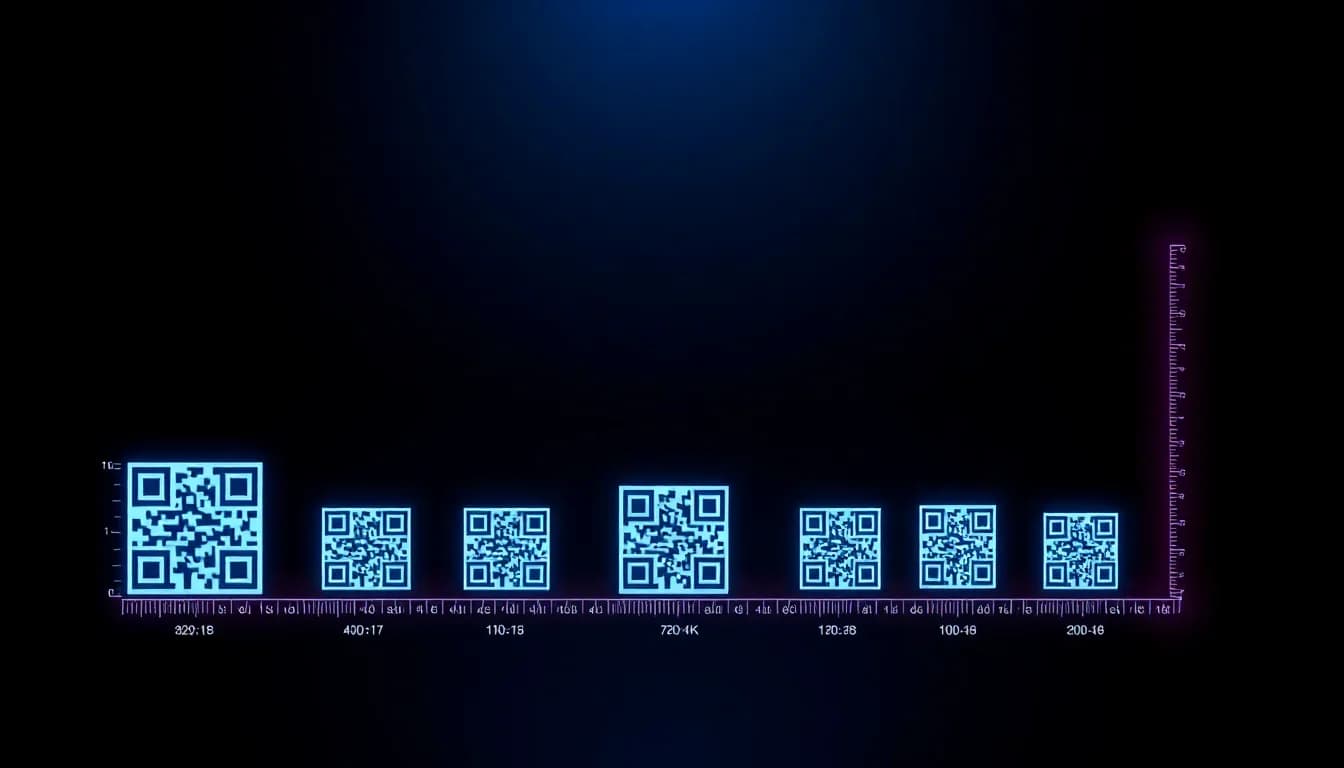
QR Code Size Guide: Minimum Sizes for Print & Cards
The complete guide to QR code sizes - minimum dimensions, the 10:1 scan distance rule, print quality tips, and recommended sizes for business cards, posters, billboards, and more.
Read More
Do QR Codes Expire? Static vs Dynamic Explained
Do QR codes expire? Static codes last forever. Dynamic codes depend on the service. Learn when QR codes stop working and how to make yours last.
Read More