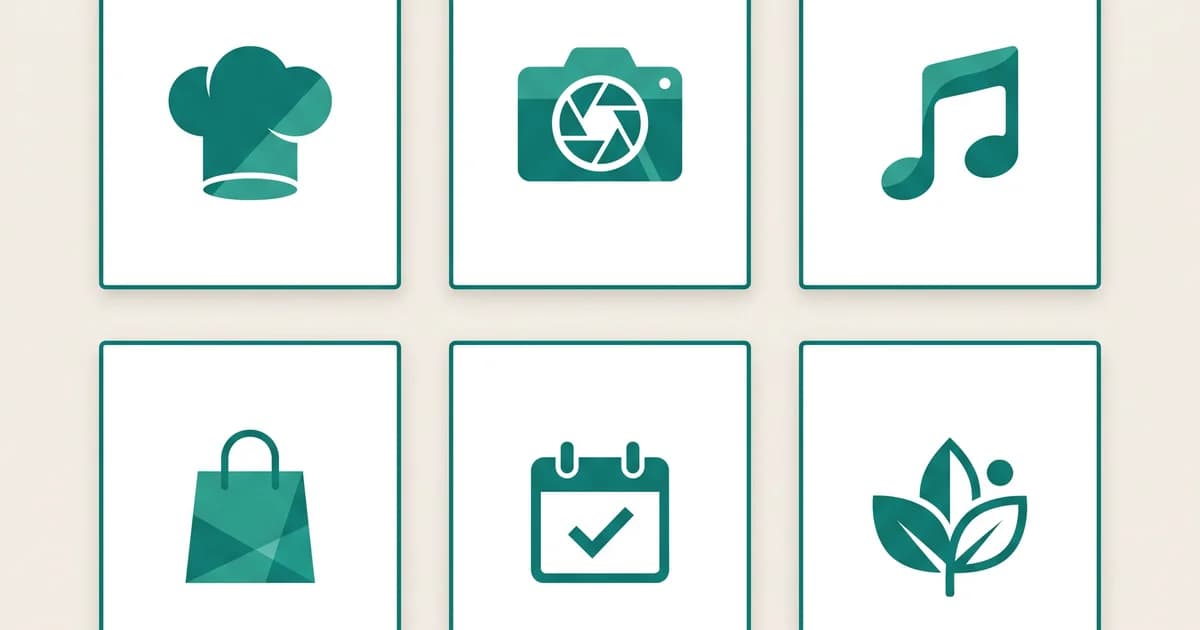
AI Pages on QR-Verse generate from a prompt - but the output is shaped by five purpose-built template structures, each designed for a different audience and goal. Understanding what each template produces helps you write a better prompt and know what to expect when the page generates.
This post covers all five templates: what they include, who they are for, what a good prompt looks like for each, and how to attach the page to a QR code that goes on physical materials.
Want to try this yourself? The generator is free and opens straight away.
Create a QR codeHow AI Pages Templates Work
When you create a new AI Page, the proprietary AI pipeline analyses your prompt and classifies it into one of five template types. The classification happens automatically - you do not choose the template explicitly. But the words you use in your prompt guide the selection.
Each template has a fixed content structure. The AI fills the structure with your specific content - your name, your links, your menu items, your event details. The styling adapts to the template type: restaurant pages use warmer, more tactile aesthetics; event pages emphasise urgency and scheduling; creator pages lead with personal brand.
The page generates in roughly 4 seconds. You can edit any element after generation, add or remove sections, and publish when satisfied.
Template 1: Creator Bio Page
Best for: musicians, influencers, YouTubers, podcasters, writers, coaches, freelancers
What it generates:
- Name and headline (pulled from your prompt)
- Profile introduction paragraph
- Link list with icons: social profiles, content platforms, newsletter, shop, booking link
- Optional: featured content preview (latest video, latest post)
- Contact or booking CTA button
Example prompt:
"Bio page for Emma Visser, Amsterdam-based food photographer. Links to Instagram, YouTube, my Lightroom preset shop, and my booking form. Casual, warm tone."
Why it works for QR codes:
Print your creator bio page QR code on business cards, press materials, packaging for physical products, or event lanyards. When someone scans, they get a single page with every way to connect - rather than a single social profile or a confusing list of links in a paper bio.
The page updates without reprinting. When you launch a new platform or change your booking link, update the page in your dashboard and every existing card still redirects correctly.
Template 2: Restaurant Menu and Multi-Link Page
Best for: restaurants, cafes, food trucks, pop-ups, bakeries, bars
What it generates:
- Restaurant name, logo slot, and brief description
- Primary link: digital menu URL
- Secondary links: online ordering platform (Deliveroo, Uber Eats, etc.), Google Reviews, reservation link (OpenTable, Google Reserve)
- Optional: Wi-Fi password section, loyalty program signup, current promotion
- Contact information: address, phone, hours
Example prompt:
"Restaurant page for Cafe Morel in Utrecht. Links to our digital menu on Menuu, our Google Reviews page, and our OpenTable reservations. Also include our Wi-Fi password: GuestMorel2026. Warm, welcoming tone."
Why it works for QR codes:
Table stickers, A-frames, takeaway bags, and window decals all benefit from a page that does more than show the menu. A restaurant multi-link page gives guests the full picture from one scan - they can order, book, review, and connect without hunting across three different platforms.
The QR code on the printed material stays the same when you switch platforms. Update the Deliveroo link to TheFork, add a new seasonal menu URL, change your Wi-Fi password - the printed code keeps working. See how other restaurants are using biolink QR codes for multi-destination scans.
Template 3: Event Landing Page
Best for: conferences, festivals, workshops, pop-up markets, private events, sports events
What it generates:
- Event name and headline
- Date, time, and location (with optional map link)
- Event description (2-3 paragraphs from your prompt)
- Registration or ticket link with CTA button
- Speaker or performer list (if included in prompt)
- Schedule overview (if included in prompt)
- Contact or info email
Example prompt:
"Event page for 'Hortus Open Day 2026', Saturday June 14th 10:00-17:00 at Hortus Botanicus Amsterdam. Family-friendly botanical garden open day with guided tours, children's workshops, and plant market. Free entry. Link to registration form at hortus.nl/opendag. Professional but friendly tone."
Why it works for QR codes:
Print a QR code on event posters, flyers, wristbands, or venue signage. Scan-to-register replaces manual URL entry, which reduces friction for attendees. Post-event, update the page to a highlights recap or next edition announcement without reprinting anything.
Events with multiple sub-pages - schedule PDF, sponsor page, social media - can link out to all of them from a single AI Page, making the QR code on printed materials more durable across the event lifecycle.
Template 4: Portfolio and Work Showcase
Best for: designers, photographers, architects, illustrators, developers, agencies
What it generates:
- Name and professional headline
- Brief bio paragraph
- Selected work showcase (links to portfolio pieces, case studies, or gallery URLs)
- Services list or specialisations
- Client logos or testimonial quote (if included in prompt)
- CTA: hire, book a call, or get in touch
Example prompt:
"Portfolio page for Pieter Janssen, UX designer specialising in fintech and e-commerce. Links to Dribbble, Behance, and my case study for ABN AMRO. Available for freelance projects. Include a 'Book a discovery call' button linking to my Calendly. Professional, minimal tone."
Why it works for QR codes:
QR codes on physical portfolio presentations - printed case studies, leave-behind folders, conference booth materials - create a bridge from paper to digital work. A potential client scans the code on a printed case study and lands on a page with all your work, contact options, and a direct booking link.
This is particularly valuable at trade fairs, pitch meetings, and in-person networking where a URL is hard to type and a digital portfolio can only be shared if someone is on the same device.
Template 5: Product or Service Promo Page
Best for: e-commerce products, service businesses, retail promotions, limited-time offers, product launches
What it generates:
- Product or service name and headline
- Hero description (benefit-focused)
- Price and offer details (if included in prompt)
- Primary CTA button: buy, book, redeem, claim
- Key features or benefits list
- Optional: countdown or urgency element (limited stock, offer expiry)
- Social proof: one testimonial or review (if included in prompt)
Example prompt:
"Promo page for 'Summer Skin Bundle' - SPF moisturiser + vitamin C serum set, EUR 39.00 normally EUR 55.00. Sale ends June 30. Buy link: beautybrand.nl/summer-bundle. Three benefits: dermatologist-tested, 30-day return, free shipping on orders over EUR 50. Confident, premium tone."
Why it works for QR codes:
Print QR codes on product packaging, shelf cards, window posters, or receipt stickers. Customers scan to learn more, claim an offer, or complete a purchase without hunting for a URL. When the promotion ends, update the page destination to the next offer - the printed code keeps driving traffic without a reprint.
Product promo pages are also useful for in-store upsells: a QR code next to a product on a shelf links to a page with the full range, bundle offer, or loyalty program signup.
Prompt Tips That Apply to All Templates
Be specific about the destination URL. The AI cannot invent URLs. Include the exact link you want to appear on each button or item. Vague prompts produce placeholder links you will need to edit.
Name the tone explicitly. "Warm and casual", "minimal and professional", "urgent and direct" - these tone signals shift the copy the AI writes for sections it has to generate (bio paragraphs, descriptions, CTA copy).
Include the key details in one prompt. Name, location, links, contact info, hours, price - put everything relevant in the initial prompt. The AI uses everything you give it. Missing information produces empty sections you edit after.
State the audience. "Family-friendly", "for B2B decision-makers", "aimed at EU fashion buyers" - audience context shapes vocabulary and hierarchy choices.
From AI Page to Published QR Code
Once you are satisfied with the generated page:
- Click "Publish" - the page goes live at
/p/[your-slug] - In the same workflow, a dynamic QR code is created that points to your page
- Download the QR code in SVG or PNG format for print, or use the embed code for digital use
- Attach the QR code to your physical material - the printed code and the live page are permanently linked
On the Business plan, you can also connect a custom domain so the URL on printed materials reads as your own brand rather than qr-verse.com. See the custom domain setup walkthrough for the technical steps.
Create your first AI Page and choose the template type that fits your use case - the workflow takes under 2 minutes from prompt to published QR code.
FAQ
Which AI Pages template is right for a personal trainer?
A personal trainer fits the creator bio template for a page with social links, a booking button, and a brief bio. If you want to promote a specific programme or class package, the promo template is better - it leads with the offer and has a stronger CTA structure. Use the creator template for your evergreen "about me" QR code, and the promo template for seasonal campaigns.
Can I use more than one template type?
Yes. Each AI Page is a separate page with its own URL and QR code. A restaurant might have a multi-link page for table QR codes and a promo page for a seasonal special. On the Pro plan, you have 5 AI Pages per month. On Business, there is no limit.
How does the AI know which template to use?
The AI classifies your prompt based on context signals: role nouns (chef, photographer, musician), intent verbs (book, register, buy), and structural cues (menu links, event dates, portfolio references). If you include "event" or "tickets" in your prompt, the event template structures the output. You do not need to select a template explicitly.
Can I add custom sections not in the template?
After generation, you can edit the page using the AI Pages editor. You can add new sections, remove default sections, and modify copy. The template provides the initial structure; you have full editorial control after that.
What file formats can I download the QR code in?
QR-Verse QR codes can be downloaded in SVG (vector, for print) and PNG (raster, for digital use). SVG is the correct format for anything that will be printed - it scales without quality loss at any size.
Ready to create your QR code?
Free plan available. No signup required. Create professional QR codes in seconds.
Ready to try it yourself?
Create professional QR codes with tracking, custom colors, and AI-generated art.
Create your QR code in seconds
No signup, no credit card. 27 QR types with full customization. Upgrade to Pro (€4.99/mo) for unlimited power.
Share this article
Related Articles
AI Pages vs Static Landing Pages: When Each Wins
AI Pages generate a complete, styled landing page in 4 seconds. Static pages give you full code control. Here is exactly when each approach wins - and how QR codes change the calculus.
Read More
Custom Domain on AI Pages: Setup Walkthrough (Business Tier)
Connect your own domain to QR-Verse AI Pages in 3 steps: upgrade to Business, add a CNAME record, and verify. Here is the exact walkthrough plus what changes on your printed QR codes.
Read More
From QR Scan to Lead: The AI Pages Conversion Funnel Explained
A QR code scan is the top of your funnel. Here is how AI Pages turn that scan into a lead, booking, or purchase - with the exact mechanics of each conversion point and how to measure what works.
Read More