Printed menus are expensive, outdated by the time the ink dries, and impossible to translate on the fly. In 2026, diners expect to scan a QR code and see your full menu on their phone - in their own language, with up-to-date prices and accurate allergen information.
This guide walks you through everything a restaurant owner or manager needs to know: the business case for QR code menus, a detailed step-by-step setup walkthrough, menu design best practices for mobile screens, handling multilingual menus and dietary filters, integrating with your POS system, a full cost analysis compared to printed menus, and how to keep your seasonal offerings fresh without ever reprinting a single page.
Whether you run a fine-dining establishment, a casual bistro, a food truck, or a hotel restaurant, this guide gives you a concrete plan. For a broader look at QR codes across the entire hospitality sector, see our complete hospitality guide.
Want to try this yourself? The generator is free and opens straight away.
Create a QR codeWhy Restaurants Need QR Code Menus in 2026
The shift to digital menus is no longer a trend - it is the standard. Diners who experienced contactless menus during the pandemic now prefer them. Here is what the numbers look like:
- 81% of diners have used a QR code menu at least once in the past year
- Restaurants save an average of $2,000 to $5,000 per year on printing costs alone
- Menu changes go live instantly - no waiting for a reprint run
- Guests can view menus in multiple languages without separate printed versions
- Allergen and dietary information stays accurate and up to date at all times
- Digital menus generate analytics - you can see which dishes get the most views and adjust your offerings accordingly
Beyond convenience, QR code menus solve real operational pain points. When your fish supplier calls at 7 AM to say they cannot deliver the salmon, you remove it from the menu before the first guest sits down. When ingredient costs spike mid-week, you adjust a price in seconds. When a new server joins the team, they do not need to memorize a 40-item menu because guests already have it on their phones.
QR code menus are not a replacement for hospitality - they are a tool that frees your staff to focus on the guest experience instead of explaining the daily specials for the hundredth time. The best restaurants pair digital menus with attentive, knowledgeable service.
Full Cost Analysis: Digital vs Printed Menus
Let us break down the real numbers. Most restaurant owners underestimate how much printed menus actually cost when you account for every reprint, every damaged copy, and every new language version.
Printed Menus (Annual Cost)
Design and layout: $200 to $500 per revision with a graphic designer. Printing: $300 to $800 per batch (50 to 100 copies). Frequency: Seasonal changes mean 4 or more reprints per year. Wine and drinks list: Often updated separately, adding $150 to $400 per reprint. Damage replacement: 10 to 20 menus per month need replacing due to spills, tears, and wear. Multilingual versions: Each additional language doubles or triples the cost. Total estimated annual cost: $2,500 to $8,000+
QR Code Digital Menu (Annual Cost)
QR code generation: Free with QR-Verse. Menu hosting: Free if using Google Docs, your existing website, or a PDF host. A dedicated menu platform costs $10 to $50 per month. Updates: Unlimited, instant, and free. Multilingual support: Built into a single URL. No additional printing. Analytics: Included - see which pages get the most views. Physical QR displays: $50 to $200 one-time cost for acrylic table stands. Total estimated annual cost: $50 to $600
Over a single year, a mid-sized restaurant (40 to 80 seats) switching from printed to digital menus can save $3,000 or more. That money goes straight back into better ingredients, staff training, or interior improvements.
For restaurants with extensive wine lists or frequent specials, the savings are even larger. A wine-focused restaurant that updates its list monthly could save upward of $5,000 annually just by eliminating wine list reprints.
Keep a small stack of simple, low-cost printed menus as backup for guests who prefer paper. This costs $50 to $100 per year and eliminates any friction with less tech-savvy customers.
Step-by-Step Setup with QR-Verse
Getting your digital menu live takes less than 10 minutes. Here is the detailed walkthrough.
Prepare your menu content
Before you create the QR code, you need a digital version of your menu hosted somewhere online. You have several options:
- Your existing website - if your restaurant already has a menu page, just grab the URL. Make sure it is mobile-friendly.
- A PDF on Google Drive or Dropbox - upload your menu as a PDF, set the sharing to "Anyone with the link," and copy the link. This works but is not ideal for mobile readability.
- A dedicated menu platform - services like a simple Google Sites page or a Notion page give you a clean, mobile-friendly layout for free.
- A direct webpage - if you have a web developer, a dedicated responsive menu page is the gold standard.
Whichever option you choose, make sure you include: dish names, short descriptions, prices, allergen icons or notes, and at least one high-quality image per category.
Create your QR code on QR-Verse
Go to the QR-Verse creator and select URL as your QR code type. Paste the link to your online menu. Choose a dynamic QR code - this is critical because it lets you change the destination URL anytime without reprinting the physical QR code. If your summer menu lives at one URL and your winter menu at another, you simply swap the link in your QR-Verse dashboard.
Customize the design to match your brand
A generic black-and-white QR code works, but a branded one performs better. In the QR-Verse customizer:
- Add your restaurant logo in the center of the QR code
- Pick brand colors - use your primary brand color for the QR pattern and a contrasting background
- Add a frame with a call-to-action like "Scan for Menu" or "View Our Menu"
- Choose a pattern style - dots, rounded squares, or classic squares depending on your aesthetic
Keep contrast high. A dark pattern on a light background scans most reliably. Avoid placing the QR code on busy photographic backgrounds.
Download in the right format
Download your QR code in SVG format for anything that will be printed - table tents, window stickers, receipts. SVG is vector-based, so it stays sharp at any size. Use PNG for digital uses like social media posts, email signatures, or your Google Business profile. A minimum printed size of 3 x 3 cm (about 1.2 x 1.2 inches) ensures reliable scanning from a normal distance.
Print and place your QR codes
Order acrylic table stands, print stickers for table surfaces, or include the QR code in your existing table tent design. Make sure the QR code is placed where guests naturally look when they sit down - not hidden behind a napkin dispenser or condiment rack. More on placement strategy below.
Test before you deploy
This step is non-negotiable. Scan with at least 3 different phones: an iPhone, a Samsung Galaxy, and an older Android device. Test under the actual lighting conditions of your restaurant - dim mood lighting can affect scanning if contrast is poor. Test at the distance customers will actually scan from (typically 15 to 30 cm). If any phone fails, adjust the QR code size or contrast and test again.
Create Your Restaurant Menu QR Code
Set up a branded, dynamic QR code for your menu in under 2 minutes. Free, no account required.
Create Menu QR Code →Menu Design Best Practices for Mobile Screens
Your digital menu is an extension of your brand. A poorly designed digital menu is worse than a well-designed printed one. Here is how to get it right.
Readability First
- Use a minimum font size of 16px for body text. Anything smaller is hard to read on a phone without zooming.
- Stick to two fonts maximum - one for headings and one for body text. Decorative script fonts look great on printed menus but are often unreadable on small screens.
- Use high contrast - dark text on a light background. Avoid light gray text on white or dark text on dark photos.
- Line height matters - set line spacing to at least 1.5x the font size so descriptions are easy to scan.
Clear Category Structure
Organize your menu with obvious, scannable sections. Guests should find what they want within 5 seconds.
- Group by course - starters, mains, desserts, drinks. Use bold, visually distinct headings for each section.
- Keep sections short - if your mains section has 30 items, break it into subcategories (poultry, seafood, pasta, vegetarian).
- Put your best-sellers near the top of each section. Eye-tracking studies show guests spend the most attention on the first 3 items in any list.
- Use dividers and whitespace - cramming everything together makes a menu feel overwhelming. Give each section room to breathe.
Using Images Effectively
- One hero image per section is more effective than a photo for every dish. A beautiful shot of your signature pasta at the top of the mains section sets the tone without slowing page load times.
- Optimize image file sizes - compress images to under 200 KB each. A menu page with 2 MB of uncompressed photos will take 5 or more seconds to load on a mobile network, and guests will give up.
- Use consistent photo styling - same background, same lighting, same angle. A mix of professional photos and phone snapshots looks unprofessional.
- Skip images entirely if you cannot do them well - a text-only menu with great typography looks far better than a menu with mediocre food photography.
Pricing Presentation
- Always include prices - a menu without prices feels untrustworthy. Guests assume the most expensive option and may order less or leave.
- Align prices consistently - either right-aligned at the end of the dish name or on a separate line below the description.
- Use simple currency formatting - "$18" is better than "$18.00" for most casual and mid-range restaurants. Fine dining often drops the currency symbol entirely ("18").
Add a "Chef's Recommendation" or "Popular" tag to 2 or 3 dishes per section. This helps indecisive guests decide faster and lets you push higher-margin items. Studies show tagged items see a 15 to 20% increase in orders.
Handling Multilingual Menus for Tourists
If your restaurant is in a tourist area, airport zone, or international city, multilingual menus can be a significant revenue driver. Tourists are more likely to enter and order confidently when they can read the menu in their own language. Instead of printing 4 different menu versions:
- Create one dynamic QR code that links to a landing page with a language selector
- The landing page can detect the phone's language setting and show the appropriate version automatically
- Offer a visible language toggle at the top of the page as a fallback
With a dynamic QR code from QR-Verse, you can update the linked page anytime. When you add a new translation, the same printed QR code on the table serves it automatically - no reprinting required.
Which Languages to Start With
- Always include English - it is the lingua franca for international travelers
- Add the local language of your city or region
- Check your analytics - after a month of tracking, you will see which language settings your guests' phones are using. Add the top 2 or 3 from that data.
- Common high-value additions for European restaurants: German, French, Spanish, Chinese, Japanese, and Arabic
Translation Tips
- Use professional translation, not machine translation alone - Google Translate has improved dramatically, but food terminology is tricky. "Confit de canard" should not become "Duck jam." Have a native speaker review translations.
- Keep descriptions short - the shorter your descriptions, the easier and cheaper they are to translate accurately.
- Include original dish names - for dishes with names that do not translate well (ramen, paella, schnitzel), keep the original name and add a brief translated description.
A restaurant in Barcelona that added English, French, and German to their QR code menu reported a 22% increase in average check size from international guests. When tourists can read the menu confidently, they order more courses and more drinks.
Dietary Filters and Allergen Information
One of the strongest advantages digital menus have over printed menus is the ability to include rich dietary and allergen data without cluttering the layout.
Essential Dietary Labels
At minimum, clearly mark dishes that are:
- Vegetarian (no meat or fish)
- Vegan (no animal products at all)
- Gluten-free (no wheat, barley, rye, or oats unless certified gluten-free)
- Dairy-free
- Nut-free
- Halal or Kosher (if applicable to your market)
Use simple, recognizable icons next to each dish. A small leaf for vegan, a wheat stalk crossed out for gluten-free - guests learn the system within seconds.
Allergen Compliance
In the European Union, restaurants are legally required to disclose 14 major allergens. In the United States, the FDA requires disclosure of 9 major allergens. A digital menu makes compliance straightforward:
- Create an allergen key at the top of the menu with numbered or lettered icons
- Tag each dish with the relevant allergen codes
- Link to a detailed allergen page for guests who need full ingredient breakdowns
- Update instantly when recipes change - no risk of serving outdated allergen information from a last-month reprint
Allergen information on your digital menu must be accurate. An outdated printed menu with wrong allergen data is a liability. With a digital menu, assign one person to update allergen info whenever a recipe changes, and log the update with a timestamp.
Interactive Filtering
The most advanced digital menus allow guests to filter by dietary preference. A guest taps "Vegan" and sees only the vegan options across all categories. This is not possible with a printed menu and dramatically improves the experience for guests with dietary restrictions. If you are building a custom menu page, this feature is worth the development investment.
Integrating with Your POS System
For maximum efficiency, your digital menu should talk to your point-of-sale system. This is where QR code menus evolve from a cost-saving measure into a genuine operational upgrade.
How POS Integration Works
The basic flow is:
- Guest scans the QR code and views the menu
- If ordering is enabled, the guest adds items to a digital cart and submits the order
- The order is sent directly to your POS system
- The kitchen display or ticket printer receives the order
- Payment can be processed digitally or at the table
Not every restaurant needs full ordering integration. Many use QR code menus purely for browsing - the guest views the menu, then orders verbally with their server. This simpler approach still delivers all the cost savings and flexibility benefits.
Common POS Systems That Support QR Menu Integration
- Square - offers built-in QR code ordering for restaurants on their Plus and Premium plans
- Toast - one of the most popular restaurant POS systems, with native digital ordering
- Lightspeed - supports QR ordering through their restaurant module
- Clover - integrates with third-party QR ordering apps
If your POS does not support direct QR ordering, you can still use a standalone QR code menu for browsing and handle orders through your existing workflow. The menu itself is independent of the ordering system.
Start with a browse-only QR code menu first. Once you see adoption rates and guest feedback, evaluate whether adding QR-based ordering makes sense for your service style. Full-service restaurants often prefer browse-only because the server interaction is part of the experience.
Where to Place QR Codes for Maximum Scans
The best QR code in the world is useless if nobody sees it. Placement is everything. Here are the highest-impact locations, ranked by effectiveness:
Table Placement
Table tents, inserts, or embedded stickers are the most common and effective placement. Use sturdy acrylic stands or laminated cards that resist spills. Place them where the guest's eyes naturally land when they sit down. For outdoor seating, use weighted stands that will not blow away.
Entry and Window
Window displays and host stand signs let passersby browse your menu before entering - this converts foot traffic into seated guests. Pair the QR code with your opening hours and a few hero dish photos. Make the QR code large enough to scan from a meter away.
Packaging and Receipts
Takeaway bags, boxes, and receipts include the QR code so customers can reorder easily or browse the menu for their next visit. For receipts, combine the menu QR code with a review QR code to collect Google Reviews.
Additional placements to consider:
- Coasters and placemats - subtle but effective, especially in bars and casual dining
- Social media and Google Business profile - add the QR code image to your online profiles
- Delivery app menus - link to your full menu from the limited delivery platform listing
- Bathroom signage - surprisingly effective for promoting dessert menus or drink specials to guests who are mid-meal
- Parking lot or valet stands - let guests browse the menu while they wait
For more on WiFi QR codes that complement your menu QR setup, see our dedicated guide. Offering easy WiFi access next to your menu QR code removes the biggest barrier to loading a digital menu.
Seasonal Menu Updates Workflow
One of the most practical advantages of a digital menu is how easily you can manage seasonal changes. Here is a workflow that keeps everything organized.
Quarterly Seasonal Cycle
- Three weeks before the season change: Plan your new menu. Finalize dishes, prices, descriptions, and allergen data.
- Two weeks before: Photograph new dishes if you plan to include images. Batch all photography in one session for consistent styling.
- One week before: Build the new menu page or update your existing one. Have it ready at a staging URL that is not live yet.
- Launch day: Swap the destination URL in your QR-Verse dashboard. The physical QR codes on every table instantly point to the new menu. Zero downtime.
- Day two: Check analytics to see if all pages are loading correctly and guests are engaging with the new items.
Daily and Weekly Updates
Beyond seasonal changes, digital menus shine for smaller, frequent updates:
- Daily specials - add them in the morning, remove them at close. Some restaurants use a dedicated "Today's Specials" section at the top of the menu that changes daily.
- 86'd items - sold out of the salmon? Remove it in seconds so guests are not disappointed when they try to order it.
- Happy hour and time-based pricing - show different prices during different windows. Advanced menu platforms can automate this on a schedule.
- Weekly rotating features - a "Fish Friday" special or a "Weekend Brunch" menu that only appears on the relevant days.
- Price adjustments - ingredient costs fluctuate. Your digital menu can reflect changes within minutes instead of waiting for the next reprint.
Because your QR code is dynamic, the physical code on the table never changes - only the destination does. This is why choosing a dynamic QR code during setup is so important. Learn more about the difference in our static vs dynamic QR codes guide.
Customer Experience Optimization
A QR code menu should enhance the dining experience, not create friction. Here is how to make sure guests love it.
Accessibility and Inclusivity
- Always offer a physical alternative - some guests prefer paper, and that is fine. Keep 5 to 10 printed menus behind the host stand for anyone who asks. Never make a guest feel bad for preferring paper.
- Ensure strong WiFi - if your menu is hosted online, guests need to load it. Provide free WiFi and display the network name and password directly next to the QR code. Consider setting up a WiFi QR code right alongside the menu QR code for one-tap network access.
- Support screen readers - if you control the menu webpage, use proper HTML headings, alt text on images, and semantic markup. Your digital menu should follow WCAG accessibility guidelines.
- Use large QR codes - a QR code smaller than 3 cm will frustrate older guests or anyone with a phone case that blocks the camera angle. Go at least 4 to 5 cm for table placements.
Staff Training
- Every team member should know how to help a guest who struggles with scanning. A 30-second demo resolves most issues.
- Train staff to proactively mention the QR menu - "Our menu is right here on the QR code, or I can grab you a printed one, whichever you prefer."
- Equip at least one staff member per shift to troubleshoot phone issues (camera permissions, QR scanner apps, etc.).
Reducing Friction
- Keep the QR code clean and undamaged - a stained, scratched, or partially covered QR code will not scan. Replace table tents and stickers at the first sign of wear.
- Add a fallback URL - print a short, memorable URL beneath the QR code (e.g., menu.yourrestaurant.com) for guests who cannot or prefer not to scan.
- Ensure the menu loads fast - aim for under 3 seconds on a 4G connection. Test with Google PageSpeed Insights. A slow menu page is worse than no digital menu at all.
- Avoid requiring app downloads - the menu should open directly in the phone's browser. Any menu system that requires guests to download an app will see dramatically lower adoption.
Health, Safety, and Compliance
Digital menus support hygiene standards and regulatory compliance that have become baseline expectations.
- Reduced touchpoints - no shared physical menus passing between tables and back to the host stand. Each guest uses their own phone.
- Easy allergen disclosure - digital menus can include detailed allergen information, full ingredient lists, and nutritional data that would make a printed menu unmanageably long.
- Regulatory compliance - in many jurisdictions, nutritional and allergen information must be readily available to guests. A digital menu makes this simple to maintain and update.
- Audit trail - digital updates are timestamped. If you ever need to prove when a menu change was made (for a health inspection, an allergen incident investigation, or an insurance claim), the digital record is there.
- Contactless payment integration - when combined with QR ordering, the entire transaction can happen without any shared surfaces. For a closer look at how QR codes streamline payments, see our dedicated guide.
Measuring Success: Analytics and Optimization
Once your QR code menu is live, tracking its performance helps you make it better over time.
Key Metrics to Watch
- Scan rate - how many QR code scans per day, per table. If certain tables have low scan rates, the QR code placement may need adjustment.
- Menu page views - which sections get the most views? If your dessert section has low traffic, consider moving it higher or adding a visual call-out.
- Time on page - how long guests spend browsing. Very short visits (under 10 seconds) may mean the page is not loading or guests are bouncing.
- Language distribution - which languages are guests viewing? This tells you which translations to prioritize.
- Device breakdown - mostly iPhone or Android? This helps you focus testing efforts.
QR-Verse's built-in analytics show you scan counts and trends. Combine this with Google Analytics on your menu page for deeper insights into guest behavior. For a broader look at where digital menus are heading, read our piece on the future of digital dining.
Get Started Today
You do not need a developer, a designer, or a budget. A working restaurant QR code menu can be live in under 10 minutes - and you can update it forever without reprinting. Start with a simple menu URL, create a branded dynamic QR code, and place it on your tables. You can add multilingual support, dietary filters, and POS integration over time as you see what your guests respond to.
For more ways QR codes can support your restaurant beyond the menu - from collecting Google Reviews to sharing your WiFi password - explore our menu QR solution page. If you run a smaller operation, our small business QR code guide covers budget-friendly strategies that work for any size restaurant.
Ready to Digitize Your Menu?
Create a free, branded QR code for your restaurant menu. Dynamic updates, analytics, and multilingual support included.
Create Free Menu QR Code →Do I need a website to create a QR code menu?
Not necessarily. You can link your QR code to a PDF hosted on Google Drive, a Notion page, a Google Sites page, or any URL where your menu is available online. However, a dedicated responsive webpage gives the best mobile experience - guests can navigate categories, filter by dietary preference, and view allergen details without zooming or scrolling through a PDF.
Can I update my menu without changing the QR code?
Yes. With a dynamic QR code from QR-Verse, you can change the linked URL anytime through your dashboard. The printed QR code on every table stays exactly the same - only the destination changes. This means seasonal updates, price changes, and new dishes require zero reprinting.
What if a customer cannot scan the QR code?
Always keep 5 to 10 printed menus as backup at the host stand. You can also print a short URL beneath the QR code (e.g., menu.yourrestaurant.com) so guests can type it manually into their browser. Train staff to offer assistance proactively and to default to a printed menu without making the guest feel like they are causing an inconvenience.
How do I handle multiple languages on one QR code?
Link your QR code to a landing page with a language selector at the top, or use a page that auto-detects the phone's language setting and redirects to the correct version. Either way, one QR code serves all languages. Start with English and your local language, then add more based on guest demographics from your analytics data.
Is a QR code menu compliant with accessibility and allergen regulations?
A well-designed digital menu can be more accessible than print. It supports screen readers, text scaling, high-contrast modes, and can include detailed allergen data that would make a printed menu unwieldy. Ensure your menu webpage follows WCAG guidelines and lists all legally required allergens for your jurisdiction. In the EU, that means 14 allergens; in the US, 9.
How much does it cost to set up a QR code menu?
The QR code itself is free to create with QR-Verse. Your total cost depends on how you host your menu. Using a free platform like Google Sites, Notion, or a PDF on Google Drive costs nothing. A dedicated menu hosting service typically runs $10 to $50 per month. The only physical cost is printing the QR code displays for your tables, which is a one-time investment of $50 to $200 depending on the number of tables and the quality of the stands. Compared to $2,500 to $8,000 per year for printed menus, the savings are significant from month one.
Ready to create your QR code?
Free plan available. No signup required. Create professional QR codes in seconds.
Ready to try it yourself?
Create professional QR codes with tracking, custom colors, and AI-generated art.
Try our free tools:
Create your QR code in seconds
No signup, no credit card. 27 QR types with full customization. Upgrade to Pro (EUR 4.99/mo) for unlimited power.
Share this article
Related Articles
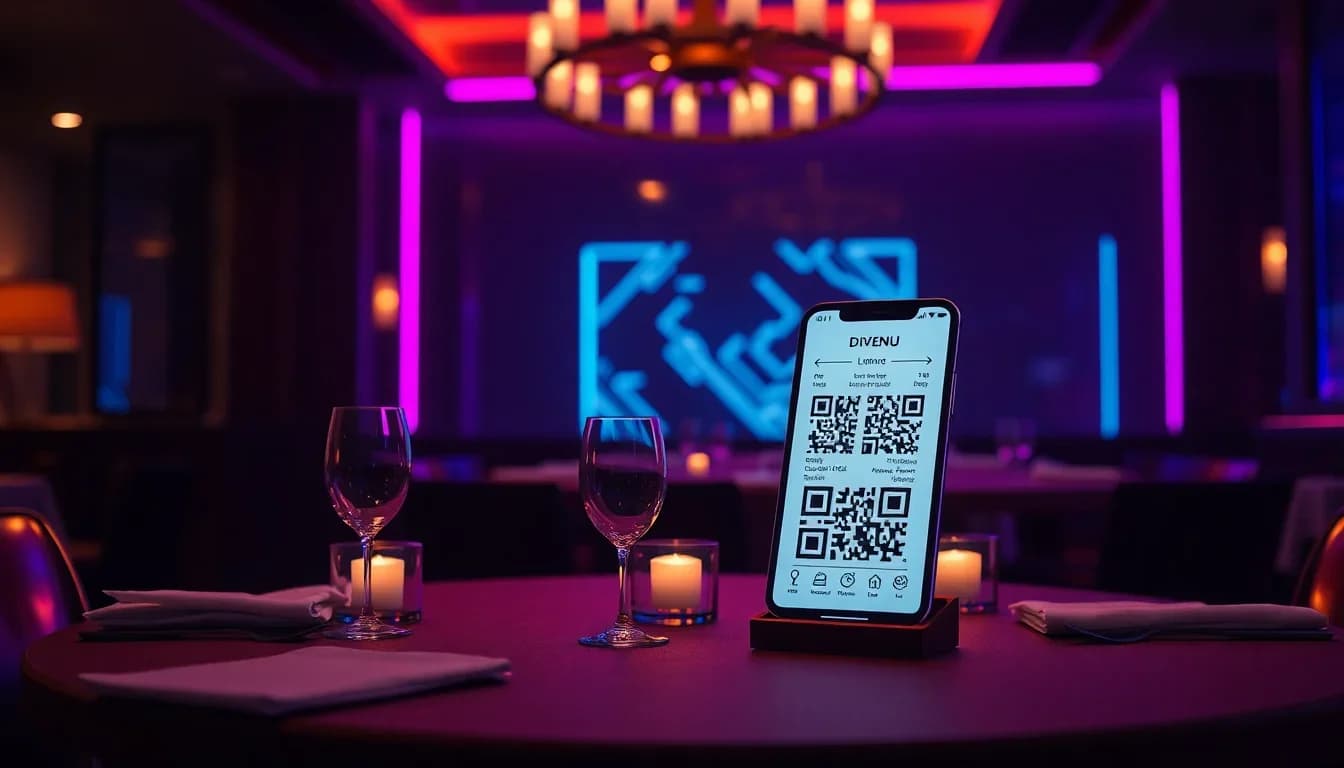
QR Code Menus for Restaurants: Setup Guide
Everything restaurants need to know about QR code menus - from setup to placement, design tips, multilingual support, and scan tracking. Free, fast, and no app required.
Read More
QR Codes for Restaurants & Hospitality Guide
From digital menus to instant reviews and WiFi sharing - everything hospitality businesses need to know about QR codes in 2026.
Read MoreDigital Menu QR Code: Why Restaurants Are Going Paperless
How restaurants use QR code menus to streamline ordering, update prices instantly, and cut printing costs. Complete guide to digital menu setup.
Read More