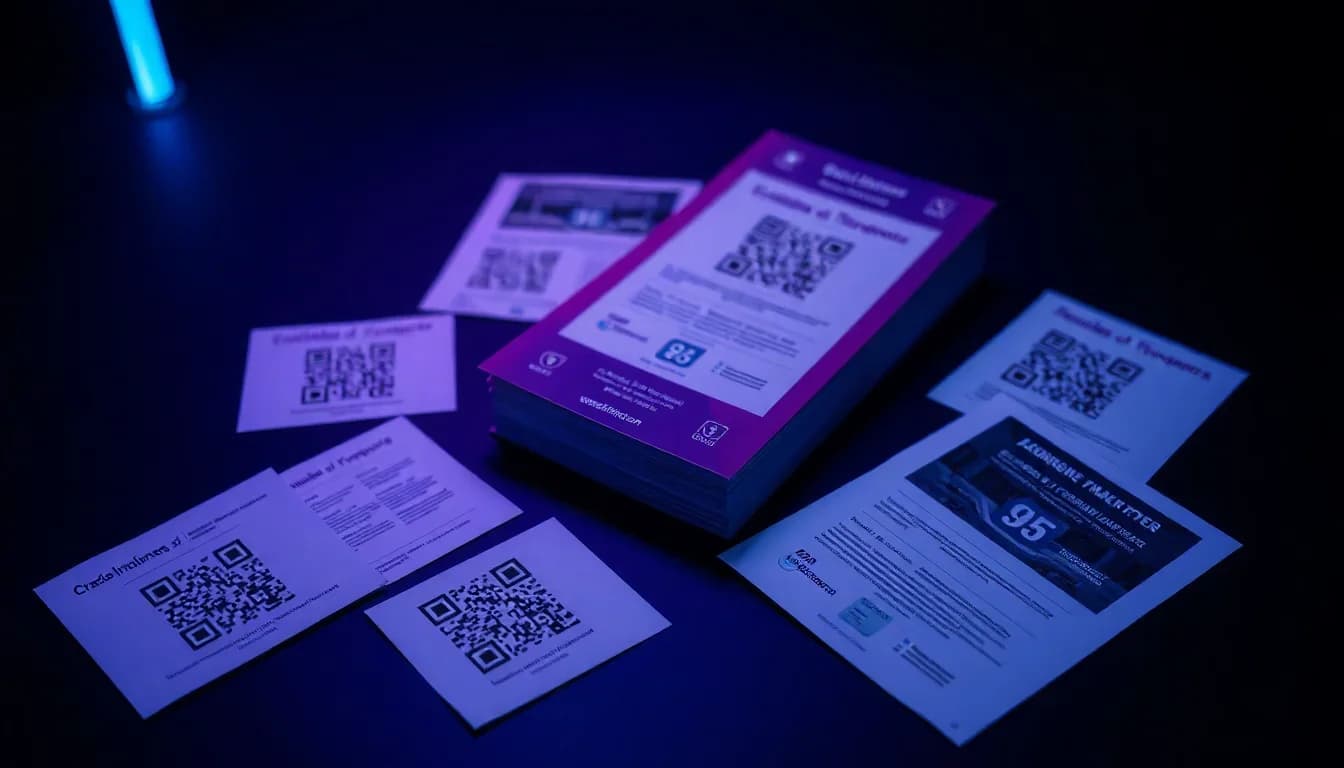
O impresso não morreu - apenas ficou mais inteligente. Adicionar códigos QR a folhetos, cartazes, brochuras e cartões de visita transforma cada peça impressa numa porta de entrada rastreável e interativa. Mas um código QR mal colocado ou com tamanho incorreto desperdiça papel e dinheiro. Este guia cobre tudo o que precisa para acertar à primeira.
Quer experimentar você mesmo? O gerador é gratuito e abre de imediato.
Criar um QR codePorque os Códigos QR Pertencem a Todo o Material Impresso
Os materiais impressos têm um problema: são unidirecionais. Um folheto informa alguém sobre a sua oferta, mas não consegue captar a resposta, medir a interação ou atualizar-se. Os códigos QR resolvem os três problemas.
Ligue o Impresso ao Digital
Transforme um cartaz estático numa porta de entrada para o seu website, página de destino, vídeo ou aplicação. Uma leitura substitui a digitação de um URL.
Rastreie Campanhas Offline
Com códigos QR dinâmicos, vê exatamente quantas pessoas leram, quando, onde e em que dispositivo - dados que nunca obtém de um folheto simples.
Atualize Sem Reimprimir
Os códigos QR dinâmicos permitem alterar o URL de destino após a impressão. A promoção terminou? Aponte o mesmo código para a sua nova oferta.
Reduza a Confusão
Em vez de comprimir um URL longo, redes sociais e informação de contacto num espaço pequeno, um código QR liga a tudo.
Aumente as Taxas de Resposta
Estudos mostram que materiais impressos com códigos QR registam 30-50% mais interação do que aqueles apenas com URLs. Ler é mais rápido que digitar.
Custo Zero para Adicionar
Gerar um código QR é gratuito. O custo de impressão é o mesmo quer inclua um ou não. É pura vantagem.
Guia de Tamanho de Códigos QR para Impressão
A razão número um pela qual os códigos QR falham em materiais impressos é o tamanho. Demasiado pequenos e as câmaras dos telemóveis não conseguem focar. A regra geral: para cada 10 cm (4 polegadas) de distância de leitura, adicione 1 cm ao lado do código QR.
| Material | Tamanho Mínimo | Recomendado | Distância de Leitura |
|---|---|---|---|
| Cartão de Visita | 1,5 x 1,5 cm | 2 x 2 cm | 10-20 cm |
| Folheto (A5/A4) | 2 x 2 cm | 3 x 3 cm | 20-40 cm |
| Brochura | 2 x 2 cm | 2,5 x 2,5 cm | 20-30 cm |
| Cartaz (A3/A2) | 3 x 3 cm | 5 x 5 cm | 50-100 cm |
| Outdoor / Banner | 15 x 15 cm | 25 x 25 cm | 2-5 metros |
| Porta-menus / Menu | 2 x 2 cm | 3 x 3 cm | 30-50 cm |
| Embalagem de Produto | 1 x 1 cm | 2 x 2 cm | 10-20 cm |
Regra geral: 1 cm de lado do código QR por cada 10 cm de distância de leitura. Em caso de dúvida, opte por maior - ninguém se queixa de um código QR ser demasiado fácil de ler.
Crie Códigos QR Prontos para Impressão - Grátis
O QR-Verse gera códigos SVG e PNG de alta resolução perfeitos para qualquer tamanho de impressão - de cartões de visita a outdoors. Sem marcas de água, sem limites.
Criar o Seu Código QR →Onde Colocar Códigos QR nos Materiais Impressos
A colocação é quase tão importante quanto o tamanho. Um código QR bem desenhado no sítio errado é ignorado.
Inclua uma Chamada à Ação Clara
Nunca coloque um código QR isolado. Inclua sempre texto como 'Leia para 20% de desconto', 'Leia para ver o menu' ou 'Leia para obter direções'. As pessoas precisam de uma razão para pegar no telemóvel.
Mantenha Longe de Dobras e Bordas
Em brochuras e folhetos dobrados, códigos QR perto da dobra podem deformar e tornar-se ilegíveis. Coloque-os em superfícies planas e ininterruptas, a pelo menos 1 cm de qualquer dobra ou linha de corte.
Garanta Espaço Branco Adequado
Os códigos QR precisam de uma 'zona tranquila' - espaço em branco à volta igual a pelo menos 4 módulos (os pequenos quadrados que compõem o código). Sem ela, os leitores confundem o design envolvente como parte do código.
Considere o Fluxo Visual
Em cartazes, o canto inferior direito ou o centro é onde os olhos naturalmente pousam por último - perfeito para uma chamada à ação + código QR. Em folhetos, a secção inferior traseira funciona bem já que a frente contém o título.
Adeque ao Contexto
Um porta-menus de restaurante? O código QR virado para o comensal. Uma etiqueta de prateleira de retalho? O código QR à altura de segurar o telemóvel. Um crachá de conferência? No verso do crachá, facilmente legível por outros.
Desenhar Códigos QR para Impressão
A regra de design mais importante para códigos QR impressos: contraste. O código precisa de ser significativamente mais escuro que o seu fundo. Preto sobre branco funciona melhor - mas cores de marca também funcionam, desde que o primeiro plano seja pelo menos 40% mais escuro que o fundo. Nunca use claro-sobre-escuro (código branco sobre fundo escuro) a menos que inverta a lógica de contraste.
Exporte sempre o seu código QR como SVG para impressão. SVG é um formato vetorial que escala infinitamente sem perder qualidade. Um PNG que parece bem no ecrã pode tornar-se uma confusão desfocada quando impresso em tamanho de cartaz. O QR-Verse exporta tanto SVG como PNG de alta resolução - use SVG sempre que a sua gráfica o suporte.
Se está a adicionar um logotipo ao centro, mantenha-o dentro de 20-25% da área total do código QR. Os códigos QR têm correção de erros incorporada (o QR-Verse usa nível H por padrão, que tolera até 30% de obstrução), mas forçar os limites arrisca falhas de leitura - especialmente com pouca luz ou em materiais brilhantes.
Para materiais de impressão brilhantes como revistas ou papel revestido, teste a leitura sob diferentes ângulos de iluminação. O brilho pode criar reflexos que confundem as câmaras dos telemóveis. Acabamentos mate ou revestimento mate localizado sobre o código QR resolvem isto instantaneamente.
Materiais Impressos x Códigos QR: O Que Funciona Melhor
Folhetos e Cartazes de Eventos
Ligue à página de inscrição, compra de bilhetes ou detalhes do evento. Use um código QR dinâmico para poder atualizar o link quando a página do evento mudar. Adicione parâmetros UTM para rastrear quais localizações de cartaz geram mais inscrições.
Menus de Restaurante e Porta-menus
Substitua menus impressos por menus com código QR que se atualizam instantaneamente. Poupa custos de reimpressão quando preços ou pratos mudam. Ligue ao seu menu digital, página de avaliações Google ou sistema de reservas.
Cartões de Visita
Um código QR vCard no seu cartão de visita permite que os contactos guardem a sua informação com uma leitura - sem digitar. Ligue ao seu LinkedIn, portfólio ou página de agendamento.
Embalagem e Etiquetas de Produto
Ligue a instruções do produto, registo de garantia, lista de ingredientes ou páginas de recompra. Especialmente útil para produtos com espaço limitado na etiqueta.
Mailing Direto e Brochuras
Códigos QR personalizados em campanhas de mailing direto podem ligar a páginas de destino individuais. Rastreie taxas de resposta por segmento de envio.
Sinalização Imobiliária
Placas de venda com códigos QR ligam a visitas virtuais, galerias de fotos e páginas de contacto do agente. Os compradores acedem instantaneamente aos detalhes do anúncio enquanto estão em frente à propriedade.
Rastrear os Resultados da Sua Campanha Impressa
O verdadeiro poder dos códigos QR em materiais impressos é a medição. Com códigos QR dinâmicos, cada leitura é registada com data/hora, localização (nível de cidade), tipo de dispositivo e sistema operativo. Pela primeira vez, pode medir o desempenho de campanhas impressas com precisão digital.
Boa prática: crie um código QR separado para cada tiragem, localização ou tipo de material. A colocar cartazes em 3 cidades? Crie 3 códigos QR a apontar para o mesmo URL mas com diferentes parâmetros UTM. Verá exatamente qual cidade gera mais leituras - e quais localizações de cartaz valem o investimento.
O painel gratuito do QR-Verse mostra todos os dados de leitura em tempo real. Sem necessidade de upgrade pago para ver as suas análises - ao contrário da maioria dos concorrentes que bloqueiam o rastreamento atrás de planos Pro. Combine dados de leitura QR com o Google Analytics para ver a jornada completa da leitura à conversão.
6 Erros de Códigos QR Impressos Que Matam as Taxas de Leitura
Demasiado Pequeno
Um código QR de 1x1 cm num cartaz visto a 2 metros? Ilegível. Dimensione sempre para a distância de leitura esperada.
Sem Chamada à Ação
Um código QR sem contexto é uma caixa misteriosa. A maioria das pessoas não lê algo se não sabe o que vai receber.
Baixo Contraste
Cinzento sobre cinzento claro, azul sobre roxo ou qualquer combinação de baixo contraste torna os códigos QR invisíveis para as câmaras dos telemóveis, especialmente com pouca luz.
Colocado na Dobra
Códigos QR nas dobras de brochuras deformam quando dobrados, partindo o padrão de leitura. Coloque sempre em secções planas.
Usar Estático Quando Dinâmico Era Necessário
Um código QR estático é permanente - o URL está incorporado. Se a sua promoção terminar ou a página mudar, esse código QR impresso torna-se um link morto. Use sempre dinâmico para impressão.
Ligar a Páginas Não Otimizadas para Dispositivos Móveis
Mais de 90% das leituras QR acontecem em telemóveis. Se o seu código QR liga a uma página apenas para computador, perdeu o utilizador em 3 segundos. Teste sempre o destino no telemóvel primeiro.
Checklist Pré-Impressão de Códigos QR
Antes de enviar qualquer coisa para a gráfica, percorra esta checklist. Reimprimir é caro - detetar problemas agora é gratuito.
- O código QR é dinâmico (não estático) para poder alterar o destino depois
- Exportado como SVG (vetorial) para escalabilidade sem perdas em qualquer tamanho de impressão
- Mínimo 2x2 cm para materiais de mão, maior para visualização à distância
- Alto contraste entre código e fundo (código escuro, fundo claro)
- Zona tranquila de pelo menos 4 módulos à volta do código
- Texto de chamada à ação claro junto ao código QR
- Testado em mais de 3 telemóveis diferentes (iPhone, Android, modelo mais antigo)
- URL de destino otimizado para dispositivos móveis e carrega em menos de 3 segundos
- Parâmetros UTM adicionados para rastreamento de campanha
- O logotipo (se houver) cobre menos de 25% da área do código QR
Recursos Relacionados
- Gerador de Códigos QR
- Design de Códigos QR Personalizados
- Gestão de Campanhas
- Guia de Análises e Rastreamento
Pronto para Imprimir?
Gere o seu código QR em formato SVG, personalize cores e logotipo, e descarregue - totalmente gratuito. Os seus materiais impressos estão prestes a ficar muito mais inteligentes.
Criar Código QR Pronto para Impressão →Que formato de ficheiro devo usar para imprimir códigos QR?
SVG (Gráficos Vetoriais Escaláveis) é o melhor formato para impressão. Escala para qualquer tamanho sem perder qualidade - de cartões de visita a outdoors. O QR-Verse permite descarregar códigos QR como SVG gratuitamente.
Qual é o tamanho mínimo para um código QR imprimível?
Para materiais de mão como cartões de visita ou folhetos, aponte para pelo menos 2x2 cm. Para cartazes vistos a 1 metro, use pelo menos 5x5 cm. A regra: 1 cm por cada 10 cm de distância de leitura.
Devo usar um código QR estático ou dinâmico para impressão?
Use sempre dinâmico para materiais impressos. Os códigos estáticos não podem ser alterados após a impressão - se o seu URL mudar, o código impresso torna-se um link morto. Os códigos dinâmicos permitem atualizar o destino a qualquer momento.
Posso rastrear quantas pessoas leem o meu código QR impresso?
Sim. Os códigos QR dinâmicos rastreiam cada leitura com data/hora, localização, tipo de dispositivo e mais. O QR-Verse mostra todas as análises no seu painel gratuito - sem upgrade pago necessário.
Os códigos QR funcionam em papel brilhante?
Podem, mas o brilho é o inimigo. Acabamentos brilhantes refletem a luz e podem confundir as câmaras dos telemóveis. Se imprimir em papel brilhante, solicite um acabamento mate localizado sobre a área do código QR, ou teste a leitura sob várias condições de iluminação.
Como adiciono um código QR ao design do meu folheto?
Gere o seu código QR no QR-Verse, descarregue o ficheiro SVG e coloque-o no seu software de design (Canva, InDesign, Illustrator, etc.) como qualquer outra imagem. Garanta tamanho e contraste adequados.
Posso colocar um logotipo dentro do meu código QR impresso?
Sim. Os códigos QR suportam correção de erros que permite que um logotipo cubra até 25-30% do código. A funcionalidade de QR com marca do QR-Verse trata disto automaticamente, dimensionando o seu logotipo dentro de limites seguros.
É gratuito criar códigos QR para materiais impressos?
Sim. O QR-Verse oferece geração ilimitada de códigos QR gratuitos com personalização completa, exportação SVG e análises - sem conta obrigatória para códigos básicos, conta gratuita para rastreamento.
Pronto para criar seu QR code?
Plano gratuito disponível. Sem cadastro. Crie QR codes profissionais em segundos.
Pronto para experimentar?
Crie QR codes profissionais com rastreamento, cores personalizadas e arte gerada por IA.
Experimente nossas ferramentas gratuitas:
Crie seu código QR em segundos
Sem cadastro, sem cartão de crédito. 27 tipos de QR com personalização completa. Faça upgrade para Pro para poder ilimitado.
Compartilhe este artigo
Artigos relacionados
QR code estático vs dinâmico: diferenças e custos
A diferença numa frase: um QR code estático é fixo para sempre, um dinâmico pode ser editado após a impressão. Custos, tracking e tabela de decisão.
Ler Mais
QR Codes com Marca: Cores, Logos & Design
Crie QR codes com suas cores, logo e design personalizado. Guia gratuito para criar QR codes com identidade visual que geram 80% mais leituras.
Ler Mais
Painel QR Gratuito: Leituras e Localizações
Acesse analytics em tempo real para cada QR code criado. Rastreie leituras, localizações, dispositivos e tendências - totalmente gratuito com QR-Verse.
Ler Mais